Invite your team & set roles
The three access levels
- Organizer — the account owner. Can do everything, across every event, including inviting others and deleting the account. That last power is what makes this one worth guarding.
- Team manager — everything an Organizer can do day to day: every event, every activity, and can invite others. The difference is that they cannot delete the account. For most senior people on your team, this is the right level.
- Event admin — limited to their event. Full run of that event, nothing outside it. This is the level for someone brought in to run one conference, a freelance coordinator, or a colleague who only needs to touch this year’s programme.
Steps
-
Open Team
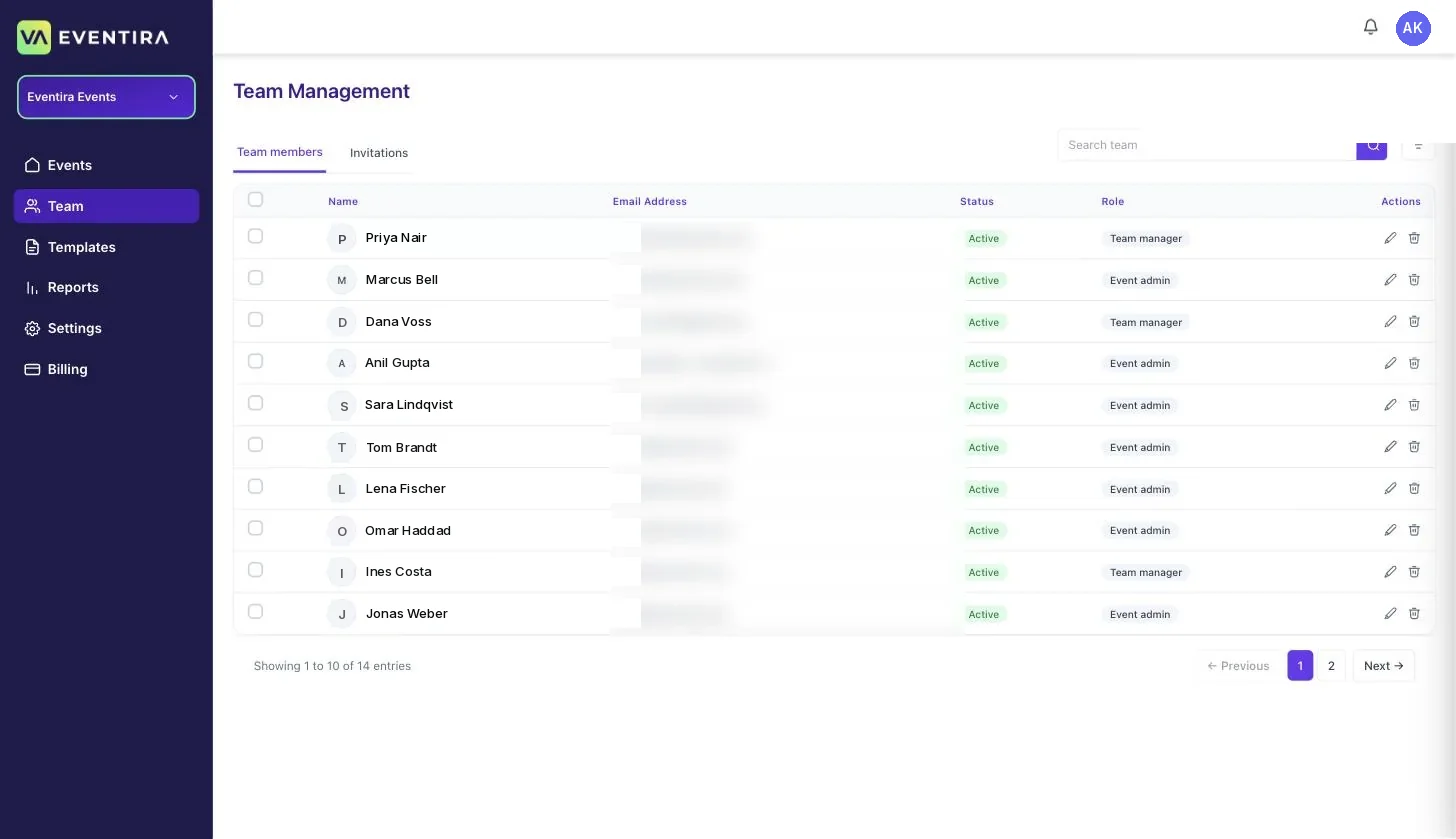
From the organisation dashboard, click Team. Team members lists everyone with their status and access level; Invitations shows anyone who hasn’t accepted yet.
-
Invite a teammate
Click + Invite team, enter their email address and choose an access level. They get an invite by email and appear as Active once they’ve signed in.
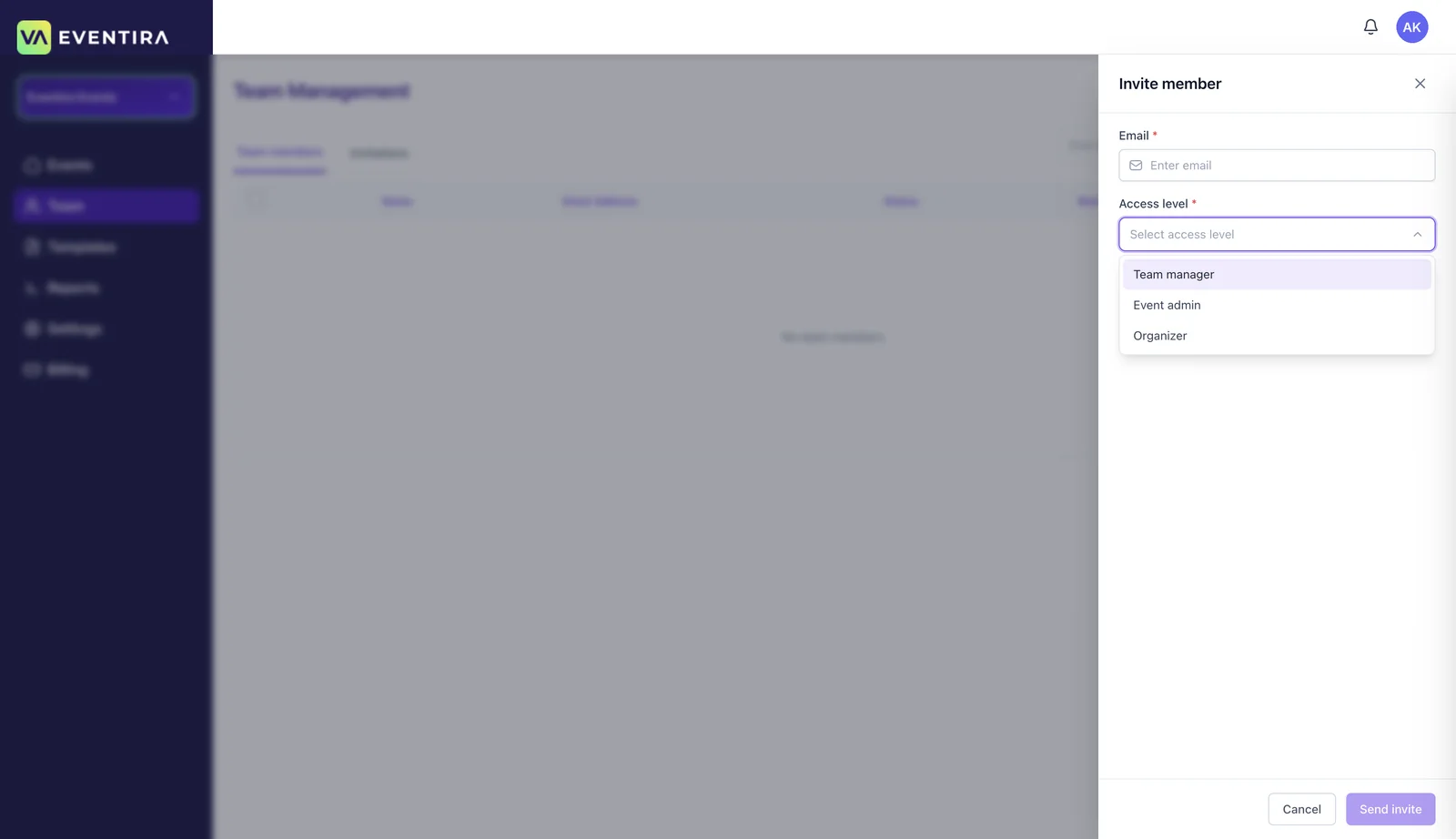
The levels you can grant depend on your own. If you don’t see all three in the list, you’re at a level that can’t grant the one that’s missing.
-
Adjust or remove access
Use the pencil on a row to change someone’s access level, and the bin to remove them. Do the removal the same week someone leaves, not at the end of the event, an unused active login is the most ordinary security problem there is.
Everyone gets the Manager App
Whichever level you give them, once a teammate has been invited and is Active, they can sign in to the Eventira Manager App on their phone. That’s the tool your team uses on the day, and today it does one job: checking people in.
It means the person on the door doesn’t need CMS training or a laptop. Invite them as an Event admin, ask them to install the app, and they can scan badges.
Still need help? Reach our team and we'll get you sorted.
Contact support →