How attendees check in with QR codes
What the attendee has
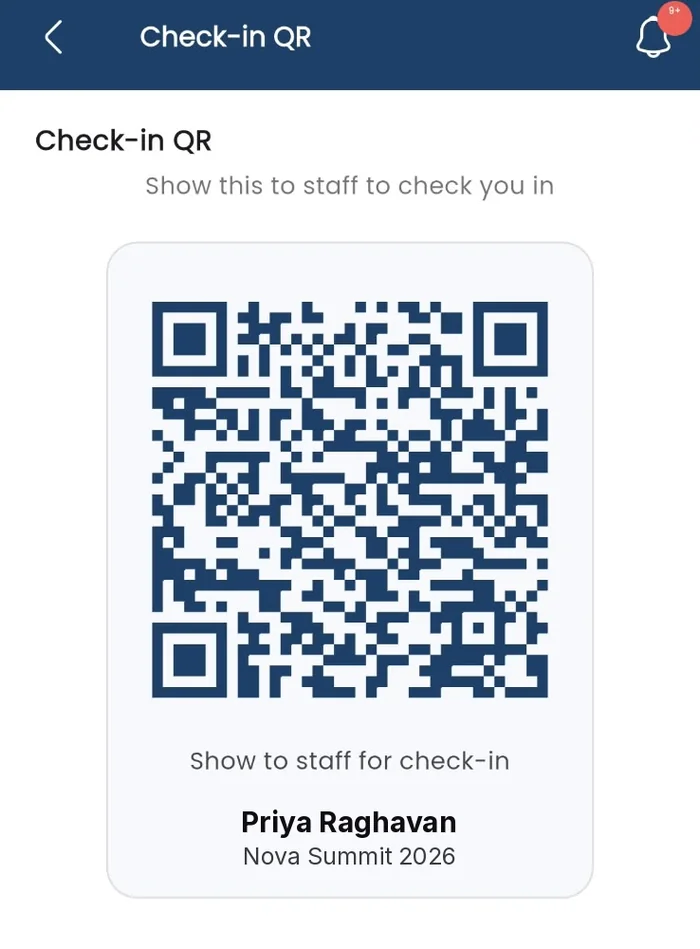
Nothing to print, and nothing to remember. In the attendee app, Profile → Check-in QR shows their code with their name and the event underneath, so the person on the door can see at a glance that they’re holding the right one.
Set your team up
-
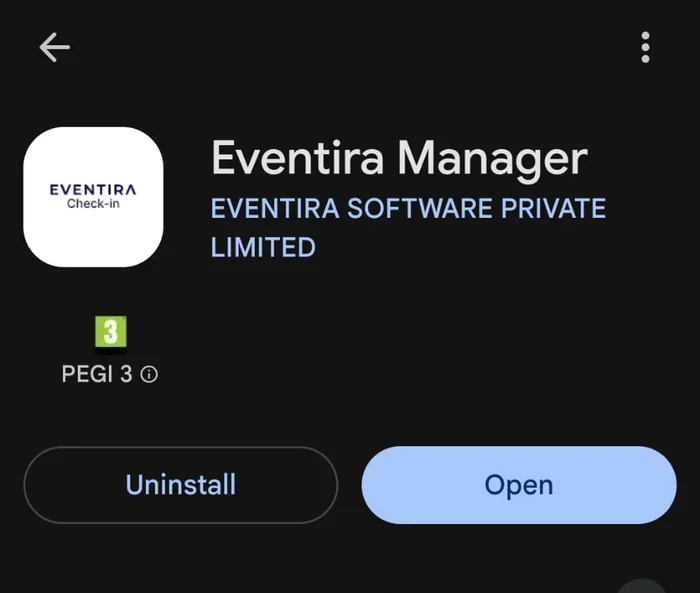 Install the Eventira Manager AppSearch for Eventira Manager in the app store and sign in with your CMS account.
 -
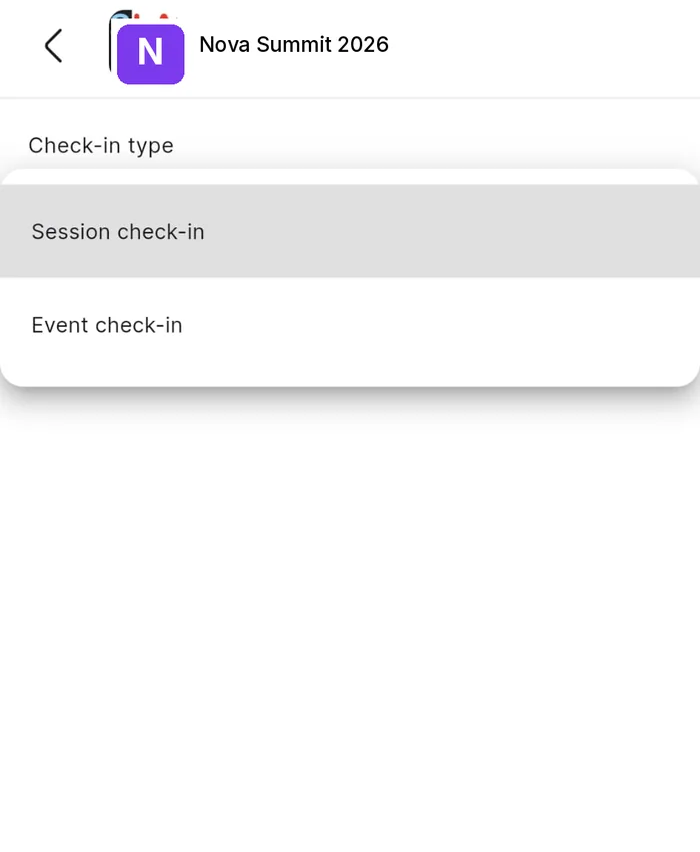 Pick the event, then the check-in typeSigning in shows the events you have access to. Pick one, then choose what you are checking people into.
 -
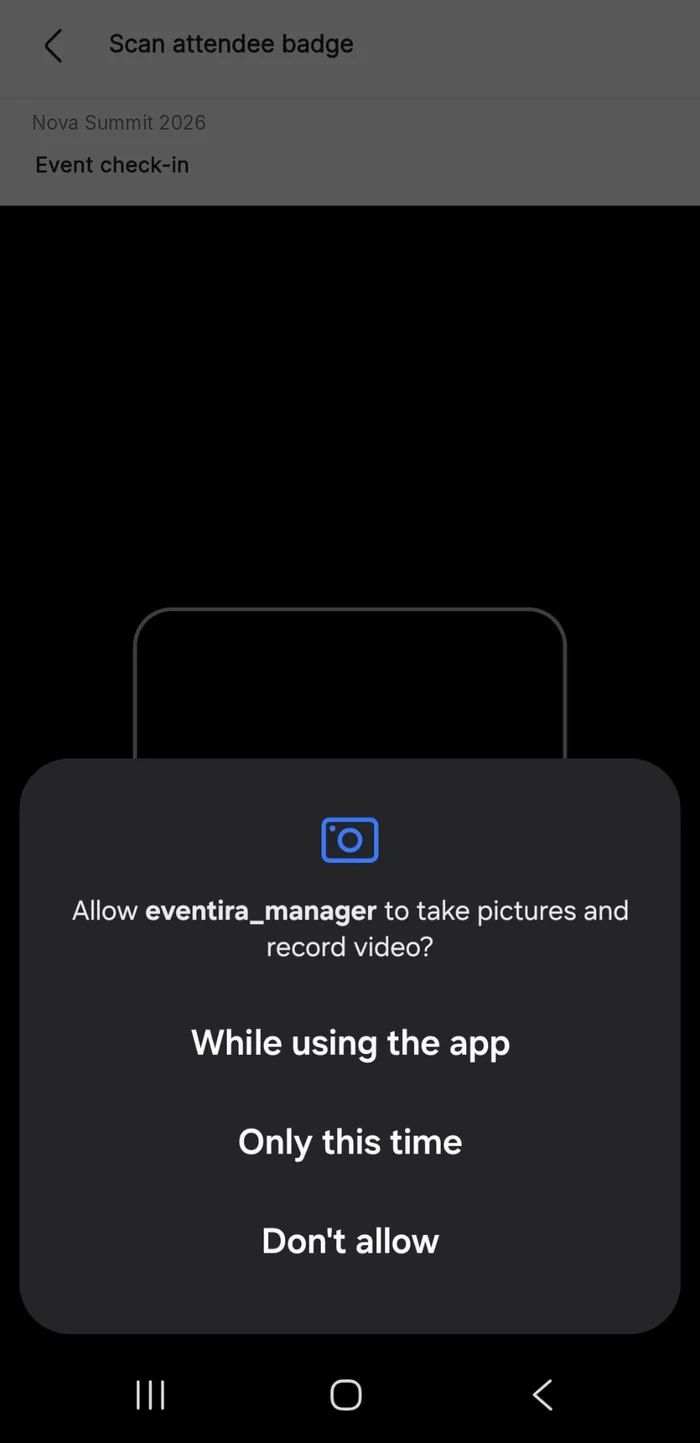 Open the scanner and start scanningTap Open scanner and allow camera access the first time.
-
Install the Eventira Manager App
Search for Eventira Manager. It’s published by Eventira Software Private Limited and is a separate app from the attendee one, so make sure your door staff install the right of the two.
-
Make sure they can sign in
Anyone you’ve invited to your team and who shows as Active can use the app, at any access level. For someone working one event, invite them as an Event admin, see Invite your team & set roles. They don’t need CMS training and they don’t need a laptop.
-
Pick the event, then the check-in type
Signing in shows their events. Open the one running today and choose Event check-in for the front door, or Session check-in for a specific room.
-
Open the scanner and start scanning
Tap Open scanner and allow camera access the first time. Then it’s point and scan, one attendee after another.
Watching it from the CMS
Open Event Hub → Check-in and you get the picture from the other side. The Event tab covers arrivals at the door; the Session tab covers a chosen session. The counts at the top right, checked-in against registered, are the number you’ll be asked for all day.
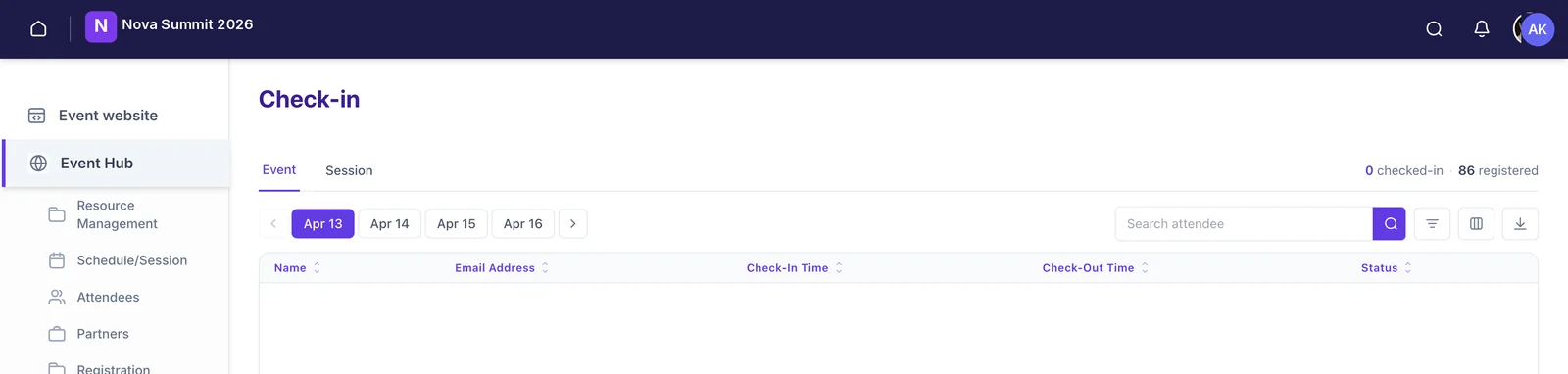
Pick the day along the top. On the Session tab there’s a further dropdown to choose which session you’re looking at.
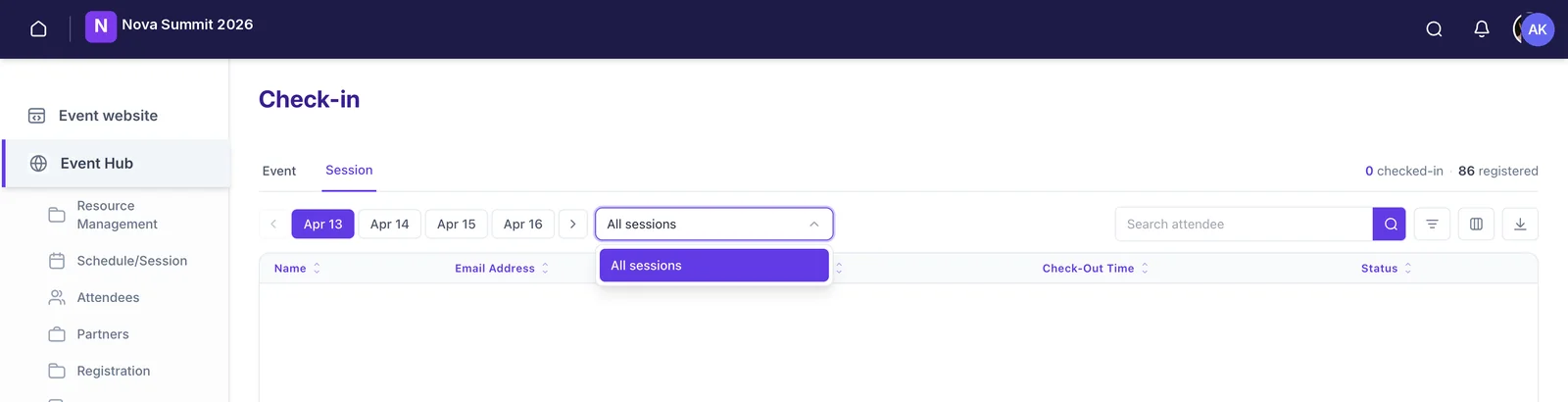
The table lists each attendee with their check-in and check-out time and current status. Search by name, filter, choose which columns to show, and export the lot when you need it outside Eventira.
Still need help? Reach our team and we'll get you sorted.
Contact support →