Bulk-import or edit your agenda
Before you start
Bulk import is the fastest way to set up, or mass-edit, a large, multi-track programme. You’ll need a role that can manage the event and your session list ready. If you’re also importing people, see Import attendees, speakers & sponsors in bulk.
Steps
-
Open the schedule and choose Upload
In the Event Hub, open Schedule/Session, click Manage session on the schedule you’re filling, then Upload in the top right.
-
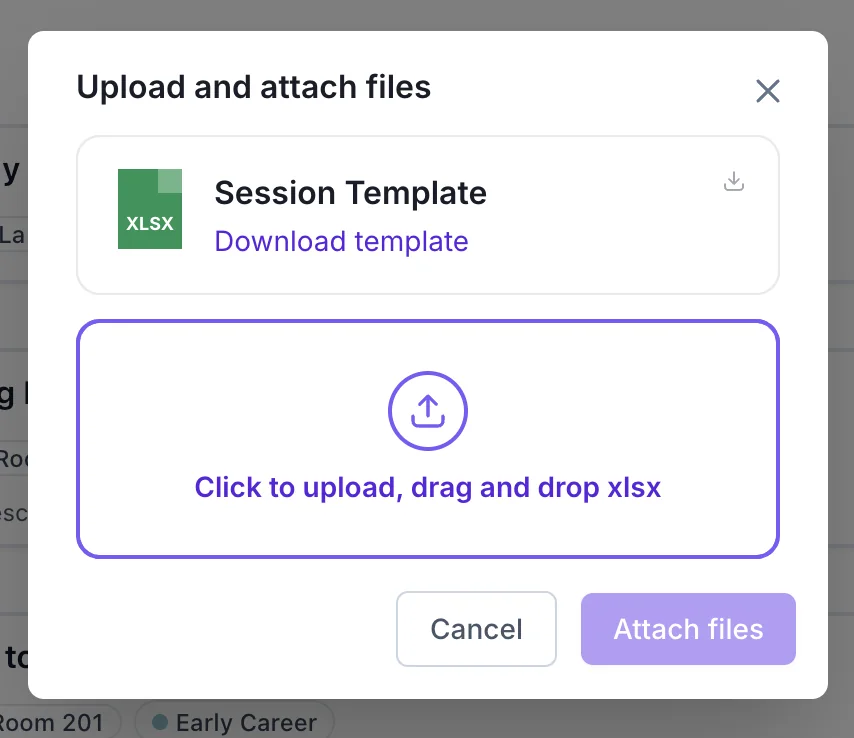
Download the Session Template
The dialogue offers a Session Template as an .xlsx file. Download it and work in that, rather than building a spreadsheet of your own, so the columns line up on the way back in.
-
Fill it in
Add one row per session, following the template’s own column headings. Match speaker names to people you’ve already imported so they link up instead of arriving as new records.
-
Upload the file
Drag the completed .xlsx onto the upload area, or click to browse, then Attach files. Your sessions appear on the schedule’s day timeline.
-
Check the result on the timeline
Open the day view and read down it. Look for sessions that landed on the wrong day, overlapping times in the same location, and any tags or locations that arrived as new entries because of a typo, you can tidy those under Tags & location.
Tip: To mass-edit an existing programme, use Download in the schedule toolbar to pull the current sessions out as a spreadsheet, make your changes there, and upload it again. If you’re reworking a large programme, tell us first and we’ll check the file with you before you import it.
Still need help? Reach our team and we'll get you sorted.
Contact support →