Run parallel sessions & multiple programmes
Before you start
Have at least a few sessions created first, see Build your event schedule & sessions. Open the schedule you want to organise and click Tags & location in the toolbar. Changes there apply to that schedule only.
Steps
-
Add the tags people will want to filter by
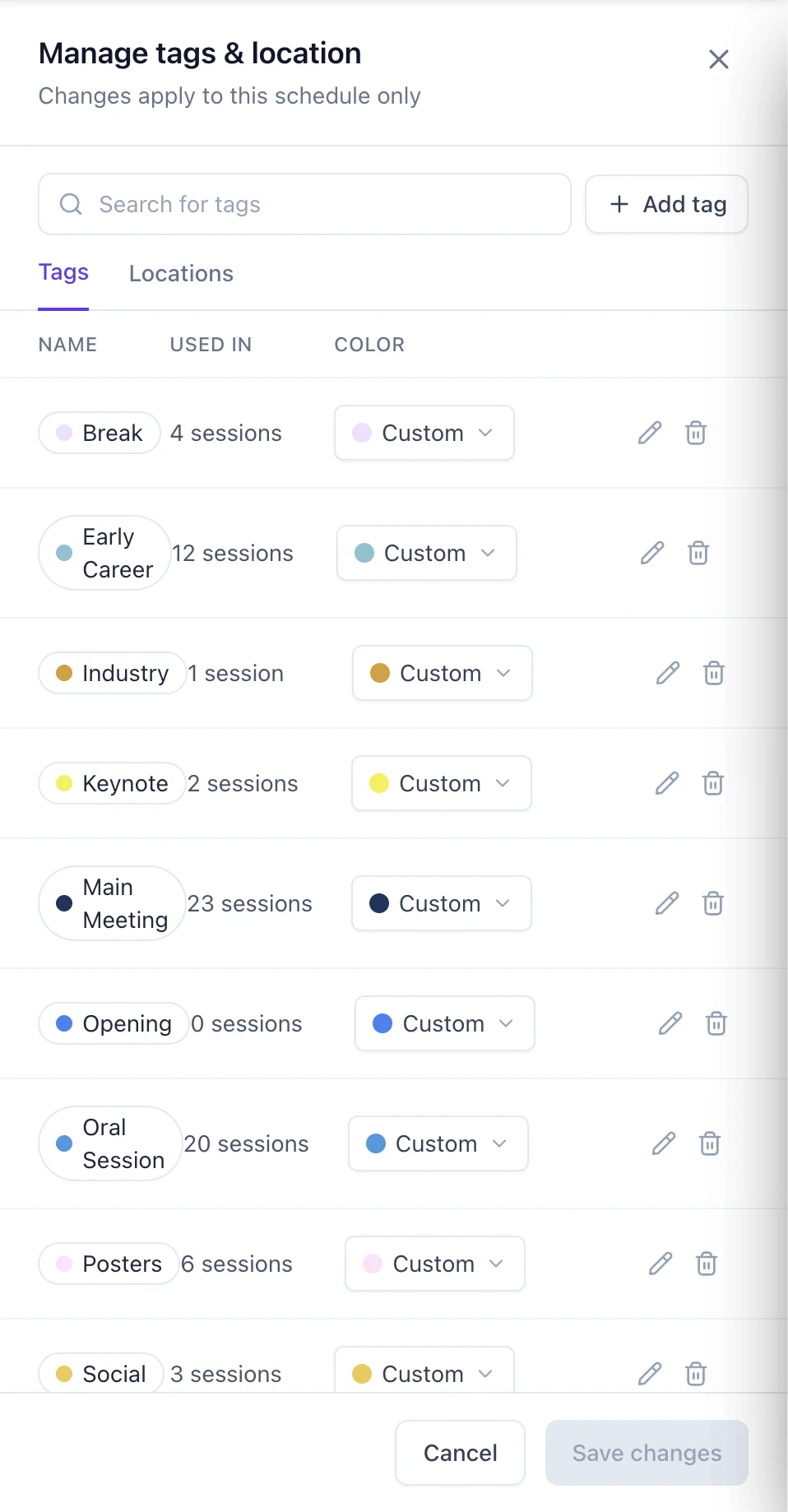
On the Tags tab, click + Add tag and give each one a colour. Think of tags as filters rather than folders: they’re the questions an attendee asks of your programme. Show me the keynotes. Show me everything clinical. Show me what’s open to early-career delegates.
Because a session can carry several tags at once, you don’t have to force each one into a single bucket. A session can be a Keynote and Clinical and Early Career, and it surfaces under all three. That’s the main way tags differ from the “tracks” you may be used to elsewhere, where a session belongs to exactly one.
The Used in column shows how many sessions carry each tag, which is a quick way to spot one you meant to apply more widely, or a near-duplicate created by a typo.
-
Add your rooms as locations
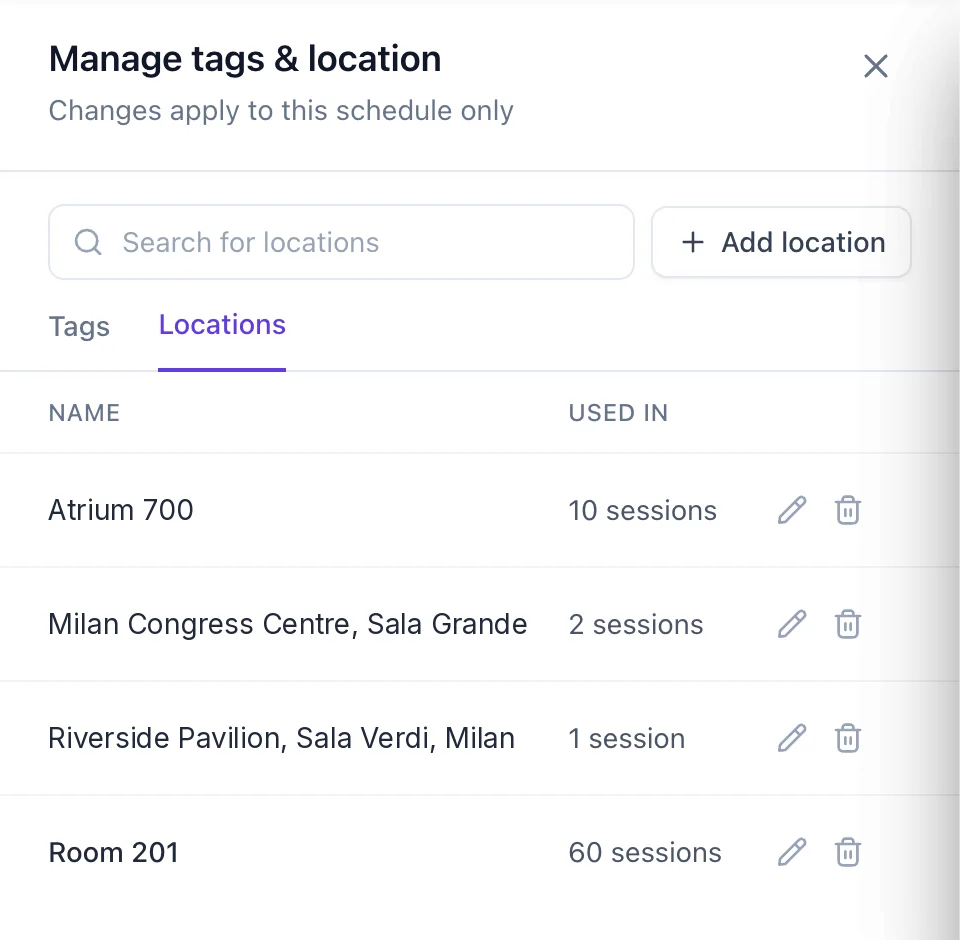
Switch to the Locations tab and add a room or venue for each space running in parallel. Locations are shared across the schedule, so you set a room up once and then pick it on any session. This is the part that actually keeps simultaneous sessions apart, tags don’t.
-
Tag your sessions
When you create or edit a session, set its tags and its location. Both appear as pills on the session card, so a glance down the day tells you where a session is and what it counts as. Be generous with tags: an extra one costs nothing and gives attendees another way to find the session.
-
Nest sub-sessions under a parent
Turn a session into a parent and add sub-sessions beneath it, ideal for a workshop with breakouts or a track with lightning talks. Attendees can expand the parent to see what’s inside.
Parent and sub-sessions keep a dense programme readable: the top level stays scannable, and the detail is one tap away. -
Check the day for clashes
With every session tagged and placed, read down the day. Two sessions at the same time should carry different locations, and the Used in counts on the Tags & location screen are a fast sanity check that nothing has been left untagged or parked in the wrong room.
-
Preview it as an attendee
Check the published programme on the event website and in the app. Attendees filter by tag to narrow a long day down to the part they care about, and build a personal schedule by selecting and bookmarking sessions.
Coming soon. Building a personal schedule on someone’s behalf from the manager side. Today, attendees pick their own sessions in the app.
When a strand deserves its own programme
Tags are for filtering one timetable. Some strands are really a separate event inside your event: a poster exhibition, a pre-conference workshop day, a co-located satellite meeting. Give those their own schedule instead.
From Schedule/Session, click Create schedule. Each schedule has its own days, sessions, tags and locations, its own upload, and its own Build Page tick. That means you can publish the main programme while the workshop day is still being agreed. On the website each one becomes its own page; in the app they sit side by side.
Building an at-a-glance view
If you run several programmes and your attendees still need the whole event at a glance, you can build that view yourself today. Create one more schedule, call it Full programme or At a glance, and lay out the whole event across it. On each entry, add a Link section pointing at the session in its home programme.
The result is an at-a-glance view that reads across everything, with one tap through to the detail, speakers, abstract, files, feedback, wherever that session actually lives. It costs you an afternoon of setup and it is the single thing delegates at a large multi-strand conference ask for most.
Still need help? Reach our team and we'll get you sorted.
Contact support →