Sponsors & partners
The partner list
Open Partners and the Partner list tab shows every organisation with its groups, contact email, and whether its page has been built. The Actions column at the right holds the three things you’ll do most: invite the partner, edit them, or remove them.
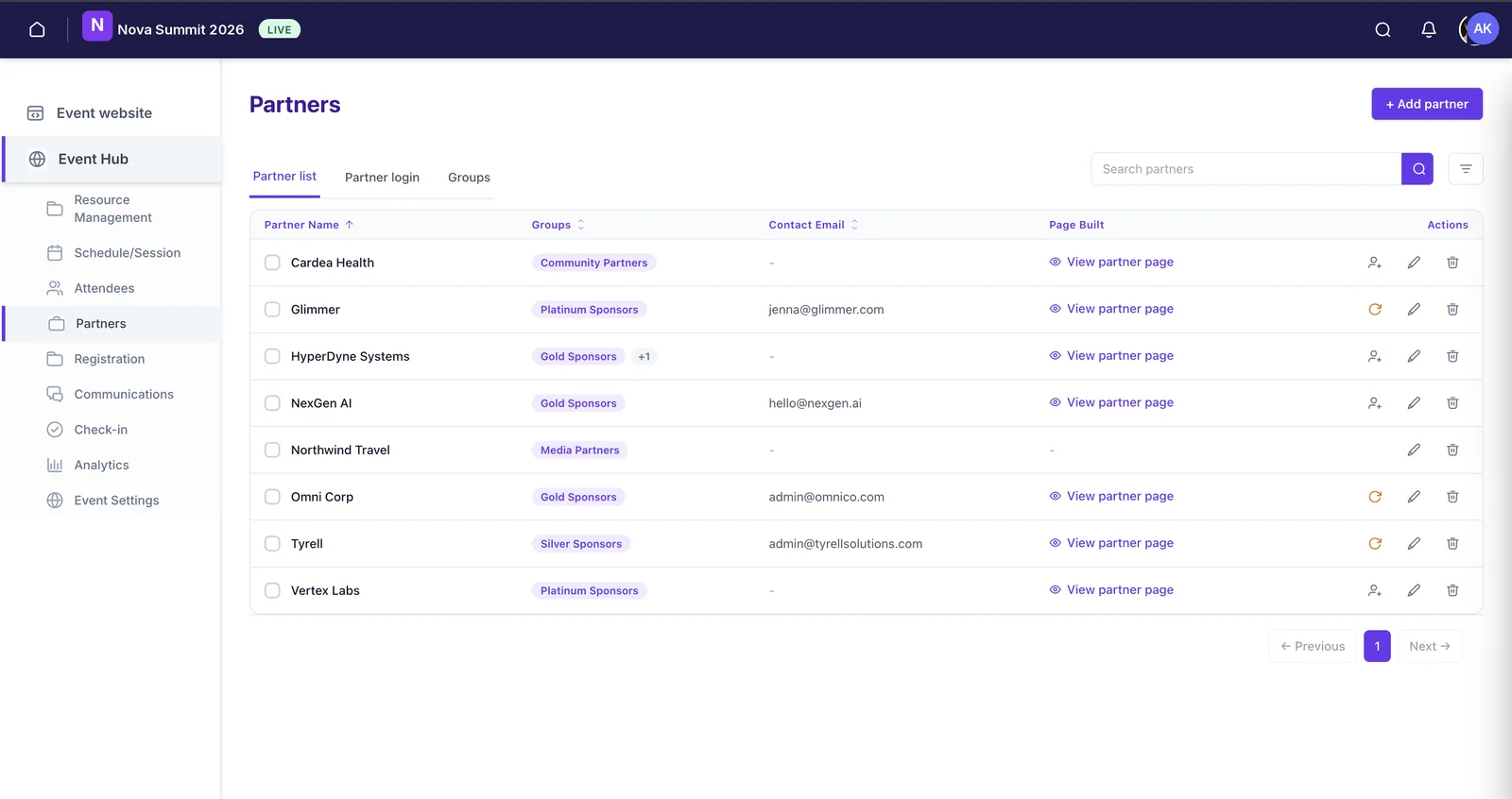
The Page Built column is worth scanning before you go live. Anything without a “View partner page” link is a sponsor whose page doesn’t exist yet, which is exactly the sort of thing that surfaces the morning of the event if nobody checks.
Adding a partner
Click + Add partner and fill in what you have. Nothing here is a commitment, you can add a name and a tier now and the rest when their marketing team sends it.
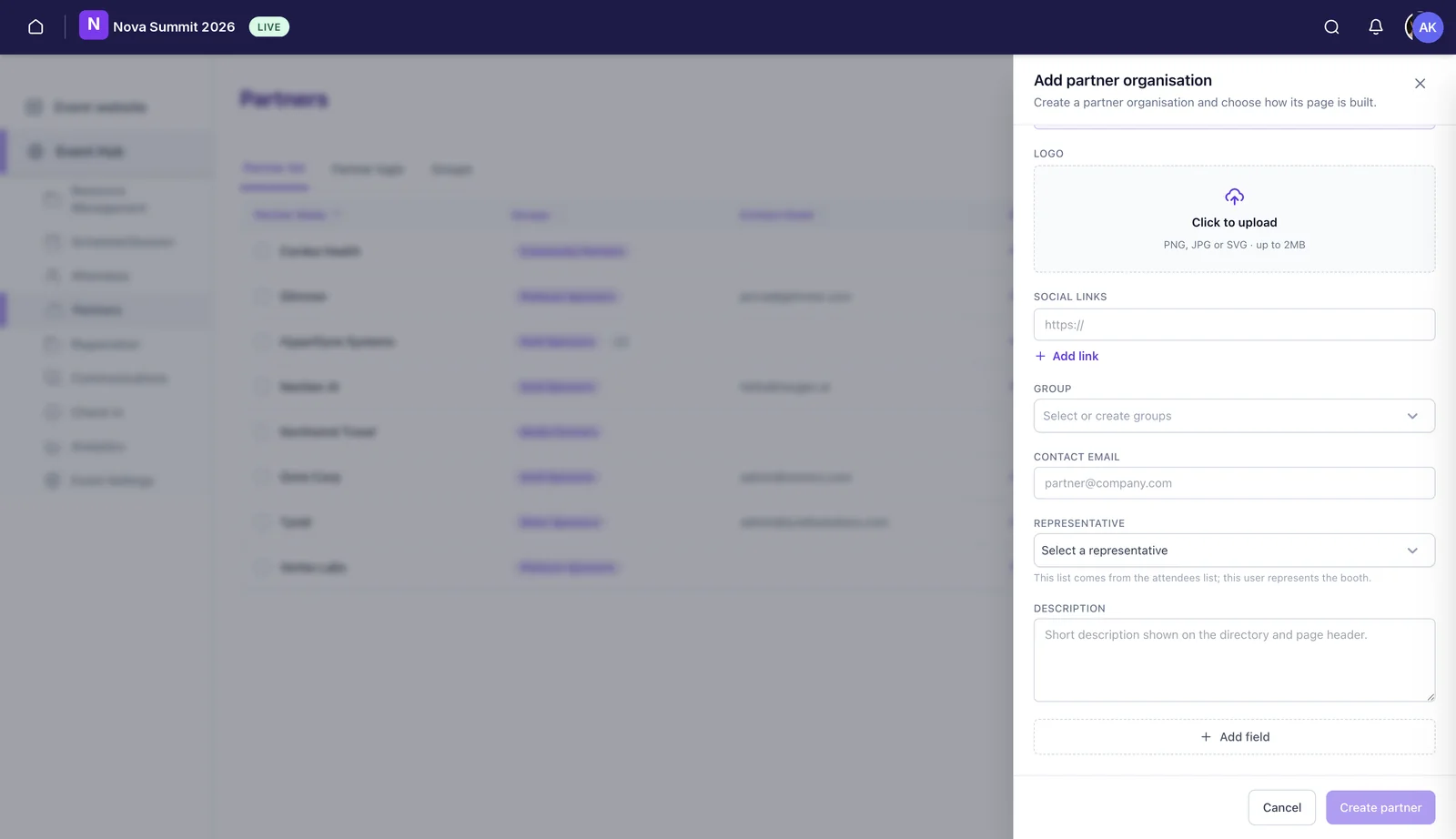
- Logo — PNG, JPG or SVG up to 2MB. SVG if they’ll give you one; it stays sharp at any size.
- Social links — add as many as you need with + Add link.
- Group — their tier. Select an existing one or create it here.
- Contact email — who you deal with. This is also where the page invite goes.
- Representative — chosen from your attendee list. This is the person on the stand, the one an attendee is effectively being pointed at.
- Description — a short line, shown on the directory card and the page header. Short really is better here: it sits under their name in a list of twenty others.
If your sponsorship agreement includes something the standard fields don’t cover, + Add field lets you add your own, with a Hide field option for anything that’s for your team rather than the public site. Stand number, contract value, shipping status, whatever you’re currently tracking in a spreadsheet.
Groups are your tiers
Partner groups do two jobs at once. They’re how you record that someone is Platinum rather than Silver, and they’re the filters attendees use in the partner directory. Create them on the Groups tab.
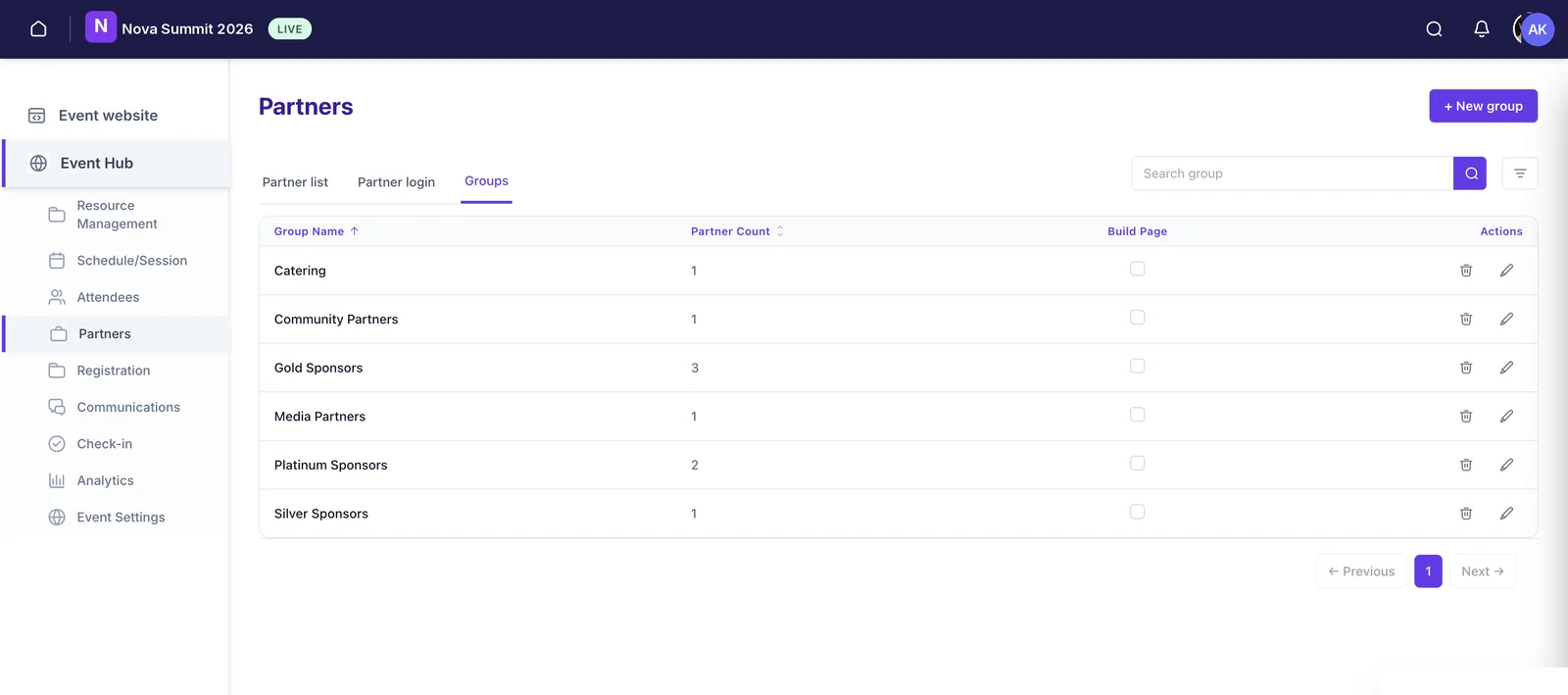
A partner group is a cluster of organisations, in the same way an attendee group is a cluster of people. They don’t have to be tiers: Catering, Media Partners, Community Partners and Academic Supporters are all groups, and a partner can sit in more than one. The Partner Count column tells you at a glance whether a tier is as full as you sold it as.
Each group also has its own Build Page tick, which generates one page per tier listing everyone in it. That’s the “our Platinum Sponsors” page you’d otherwise build by hand and update every time someone signs.
Letting partners build their own page
This is the part worth setting up properly. Instead of collecting logos, blurbs and links over email and entering them yourself, you send the partner a link and they do it.
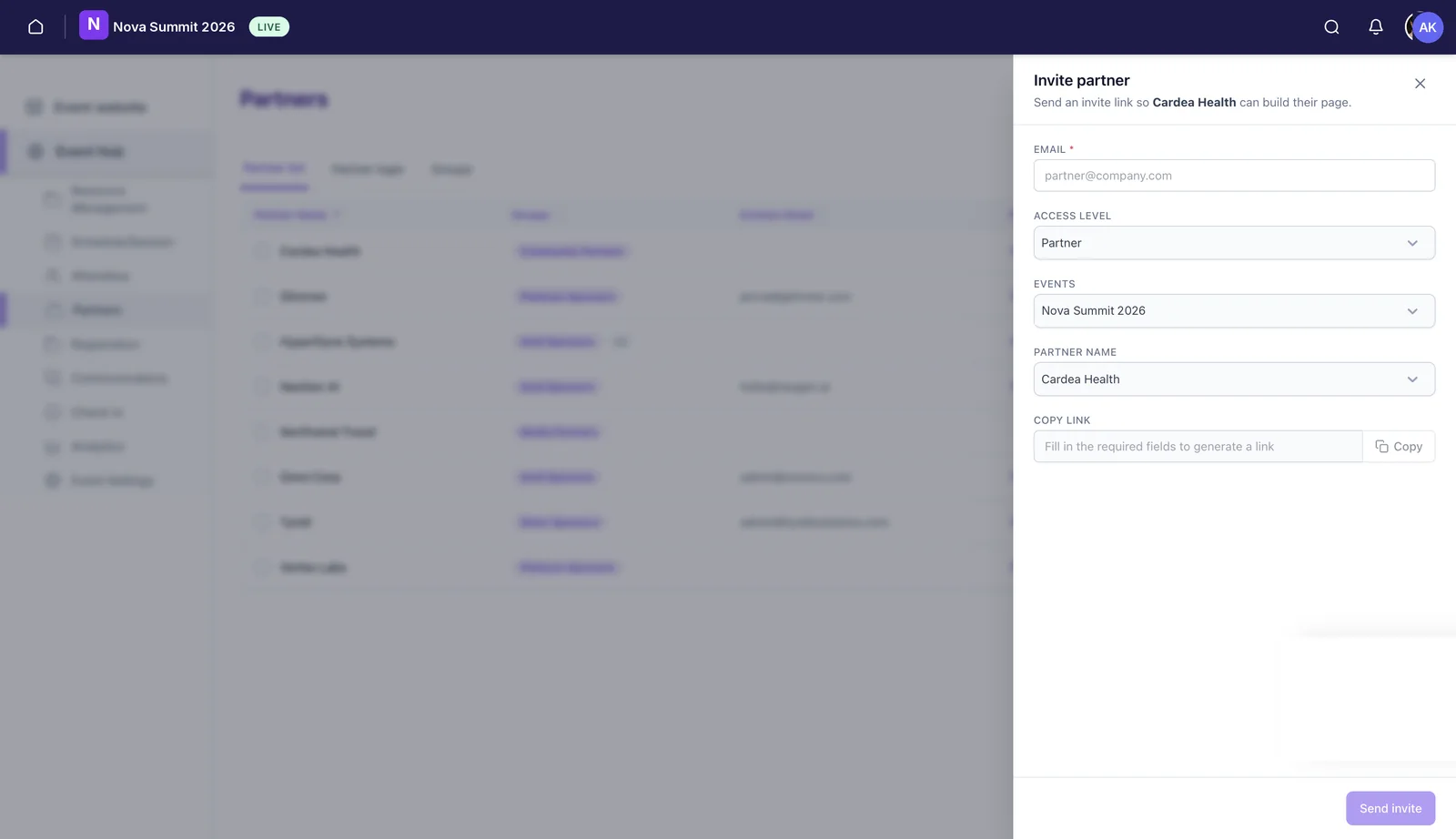
Click the invite icon on their row. Set the email and the access level, and Eventira generates an invite link, which you can either send from here or copy into an email you’ve already drafted. Access levels are the same system your own team uses, see Invite your team & set roles. An invite covers one event: a sponsor who returns next year gets a fresh invite for that event.
Partners get three ways to build the page: the visual editor, a template, or their own HTML pasted in or uploaded. That last one matters for the bigger sponsors, whose marketing team often already has a landing page for your event and would rather reuse it than rebuild it in someone else’s tool.
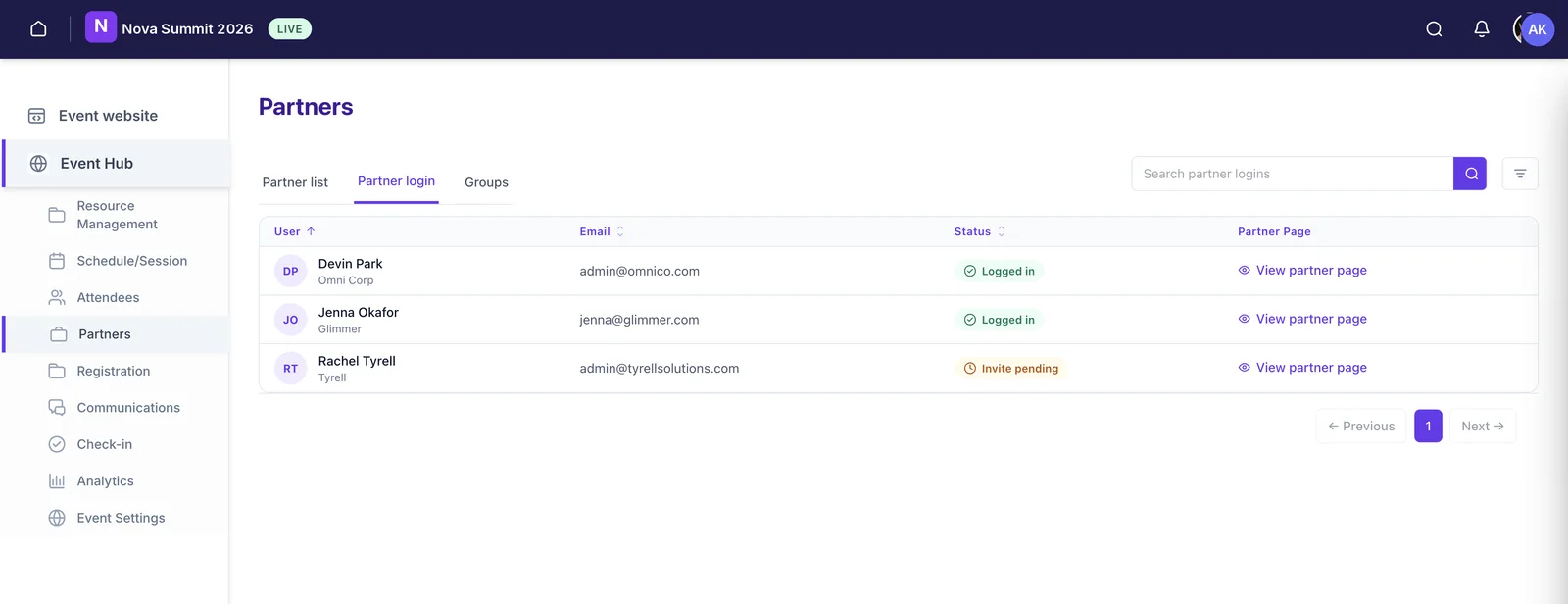
The Partner login tab then shows you where everyone stands: who has logged in, whose invite is still pending, and a direct link to each partner’s page.
Checking a partner before you publish
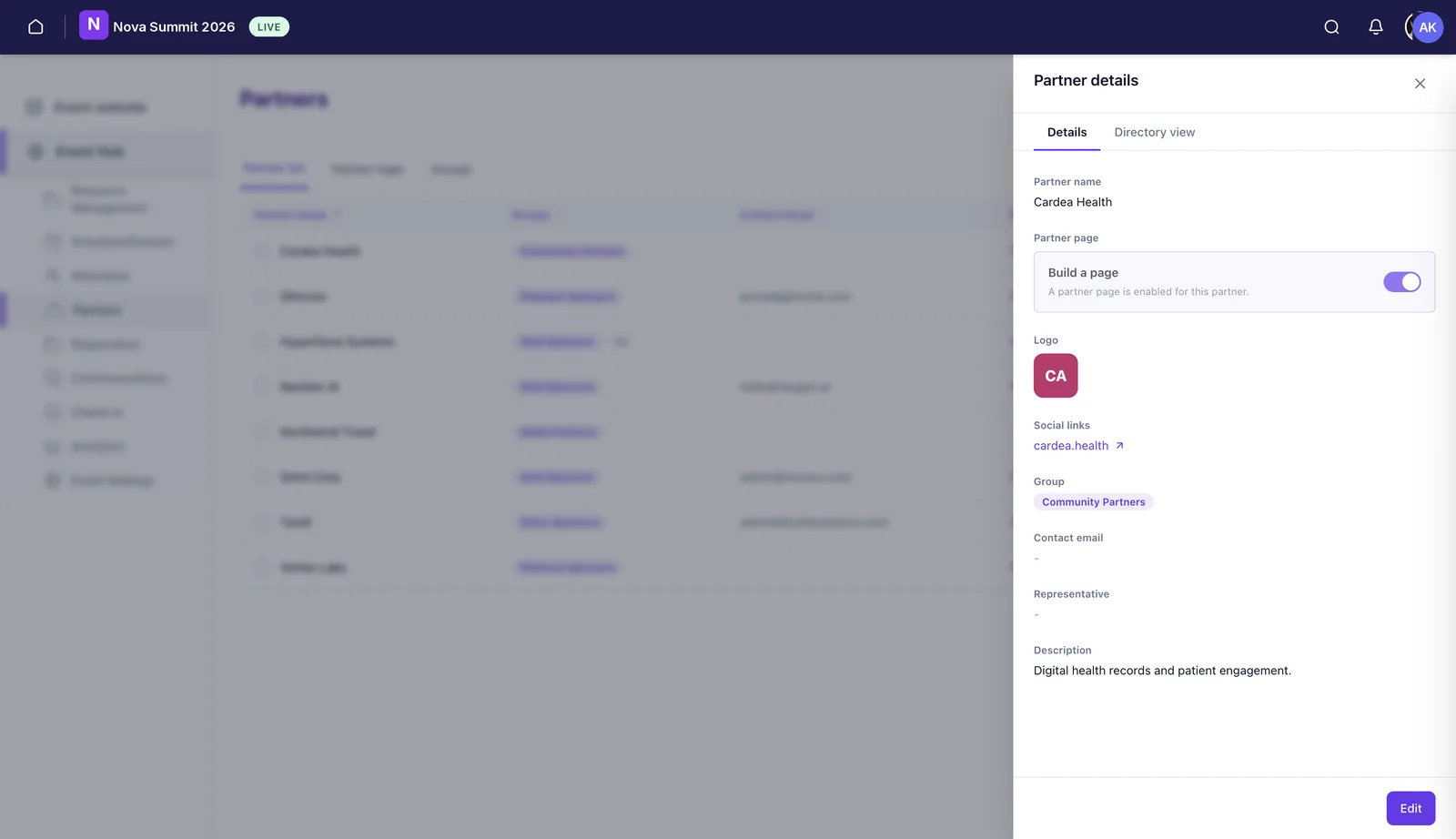
Open any partner and you get two views. Details is the record: their logo, group, contact, representative, description, and a Build a page toggle controlling whether they get a page at all.
Directory view shows the same partner as an attendee sees them: the card that appears in the directory, with their logo, tier, description, links and a button through to their page.
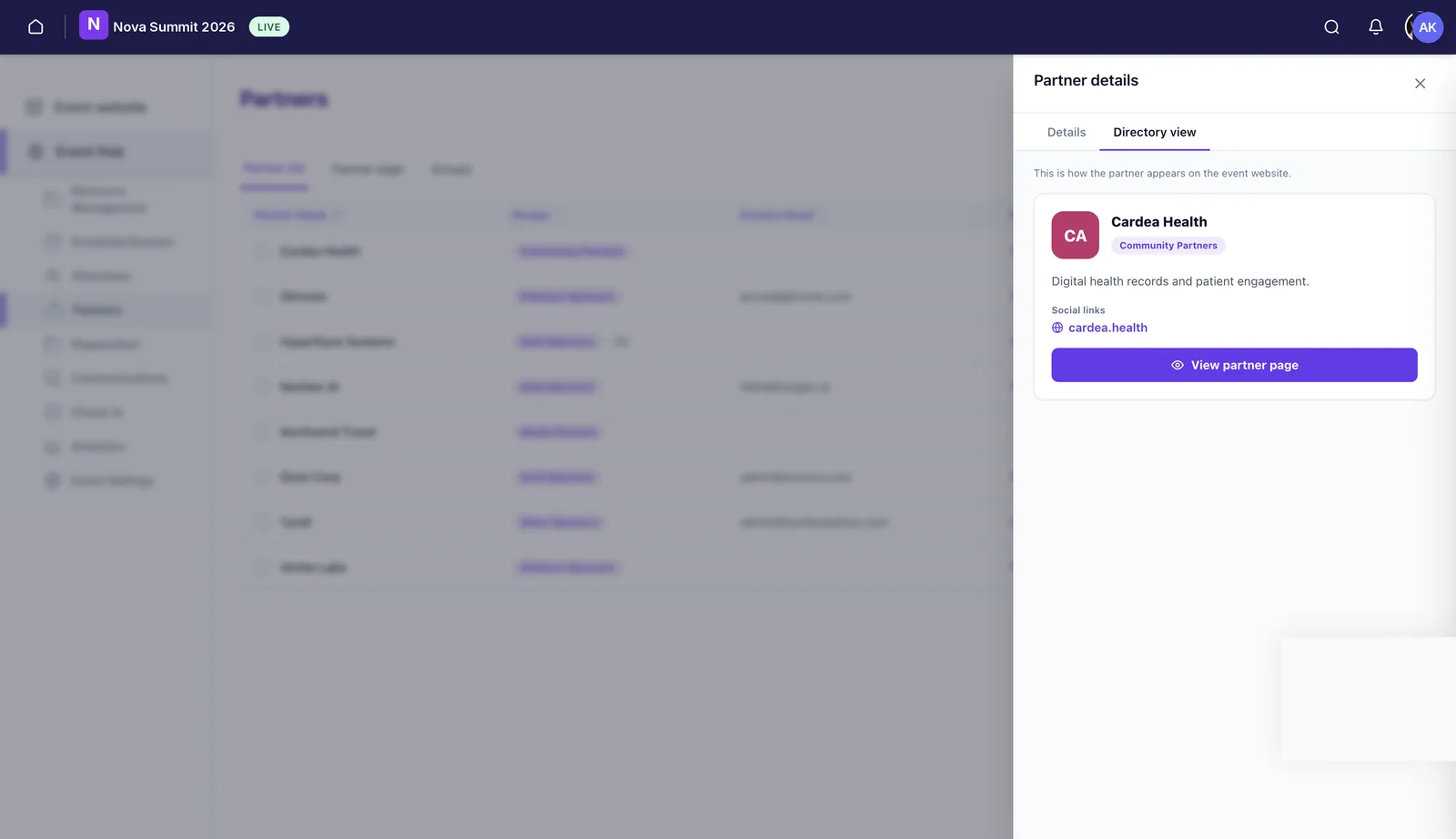
Use it. A description that reads fine in a form field can look thin on a card next to a competitor who wrote three good sentences, and you’d rather notice that yourself than have the sponsor notice it for you.
Send your partners the instructions
Partners building their own page will want to know what’s expected of them before they start. Point them at Building your partner page, written for them rather than for you: what to have ready, how to sign in, and what attendees end up seeing. Putting that link in the same email as the invite saves the round of questions that otherwise comes back to you.
Still need help? Reach our team and we'll get you sorted.
Contact support →