Fix: my event website won't publish
Before you start
Have the event open in Event website, and have a second browser, or a private window, ready so you can check the site as an attendee rather than as yourself.
Steps
-
Save, then publish
They’re two different things. Save keeps your work in the editor; Publish is what pushes it to the live site. Edits you’ve saved but not published are safe and invisible, which is the single most common reason a change “didn’t take”.
-
Check the page is set to show
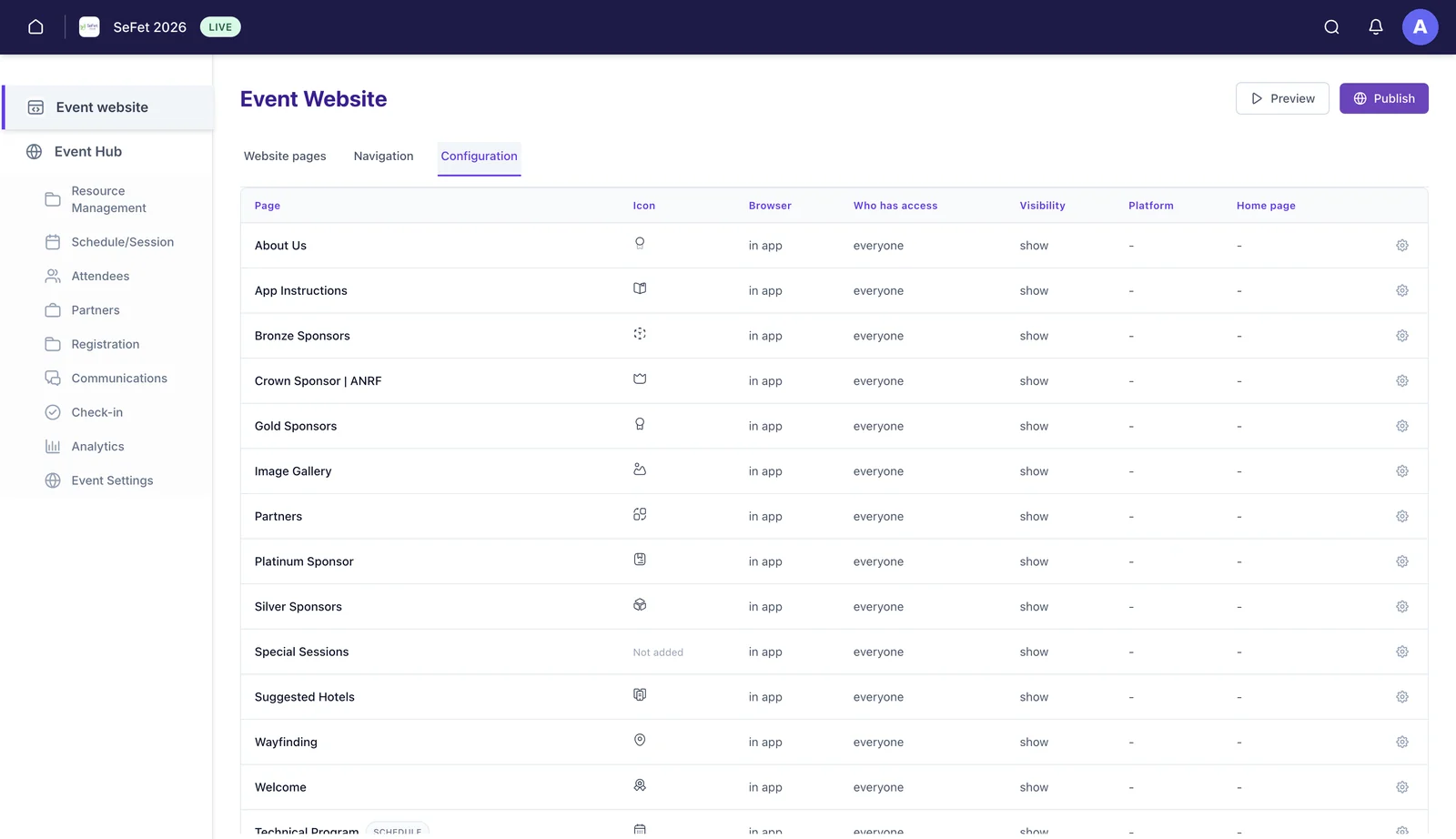
A page that exists isn’t necessarily a page anyone can reach. Open Event website → Configuration and read down the table. Visibility controls whether each page shows at all, and Who has access controls who can open it.
A page gated to a group looks missing to everybody outside that group, including to you if you’re checking while signed out. That’s the failure most often reported as “it won’t publish”. See Groups.
-
Check it’s in the navigation
Open the Navigation tab. Menu items are the pages that appear in the published navbar, and a page that isn’t in the menu can be perfectly live and still feel unreachable, because nobody has a link to it.
-
For a programme, group or partner page, check Build Page
Three things don’t follow the website’s publish flow at all. Each has its own tick, and that tick is what generates the page:
- Schedules — Build Page on the schedule list.
- Attendee groups — Build Page on the Groups tab.
- Partners and partner groups — Build a page on the partner, and Build Page on each partner group for a tier listing.
Any of them can be complete, correct and entirely absent from the site because nobody ticked it. A sponsor noticing their page is missing is the version of this you least want.
-
Look at it the way an attendee would
Use Visit website on Event Settings → General, in a private window or a different browser. Signed in as an organiser you can see things your attendees can’t, so checking from your own logged-in session will hide exactly the problem you’re looking for.
Still need help? Reach our team and we'll get you sorted.
Contact support →