Connect Ticket Tailor to Eventira
Before you start
Set your tickets up in Ticket Tailor first and get the website widget embed code from there. In Ticket Tailor that’s the snippet that starts <div class="tt-widget">. You’ll also want access to edit your event website pages in Eventira.
Steps
-
Open the page where tickets should appear
Go to Event website → Website pages and open the page in the editor. Most people put this on the home page or a dedicated Register page, wherever someone who has decided to come will look for it.
-
Drag in the Ticket Tailor Widget
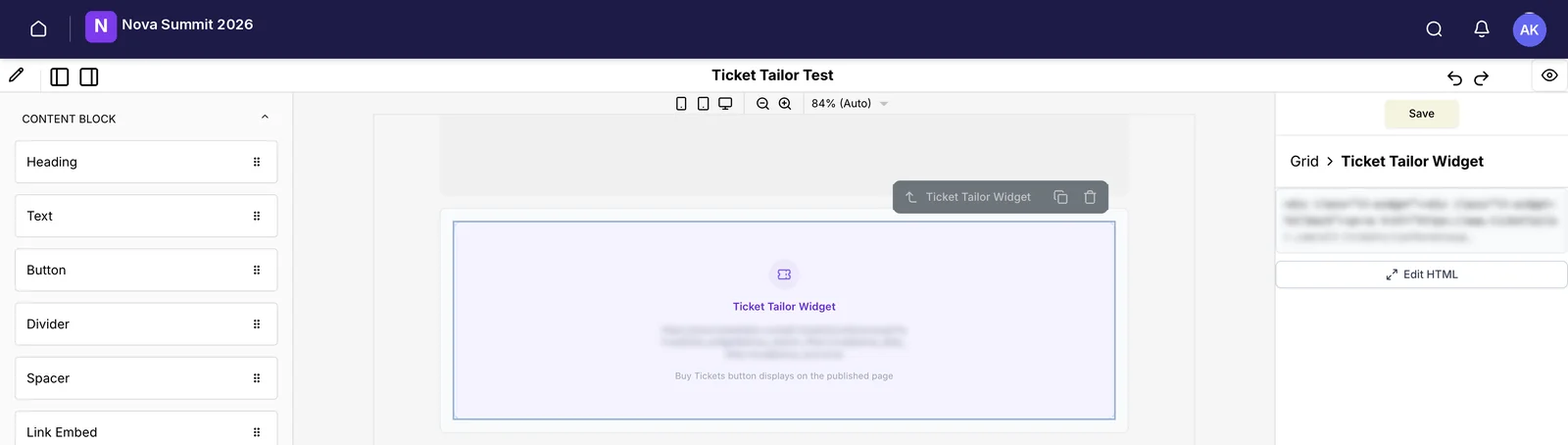
In the Content block group of the components panel, find Ticket Tailor Widget and drag it onto the canvas. It drops in as a placeholder, the real ticket shop renders on the published page rather than inside the editor.
-
Paste your embed code
With the widget selected, click Edit HTML in the right-hand panel and paste the snippet from Ticket Tailor. Click Apply, then Save.
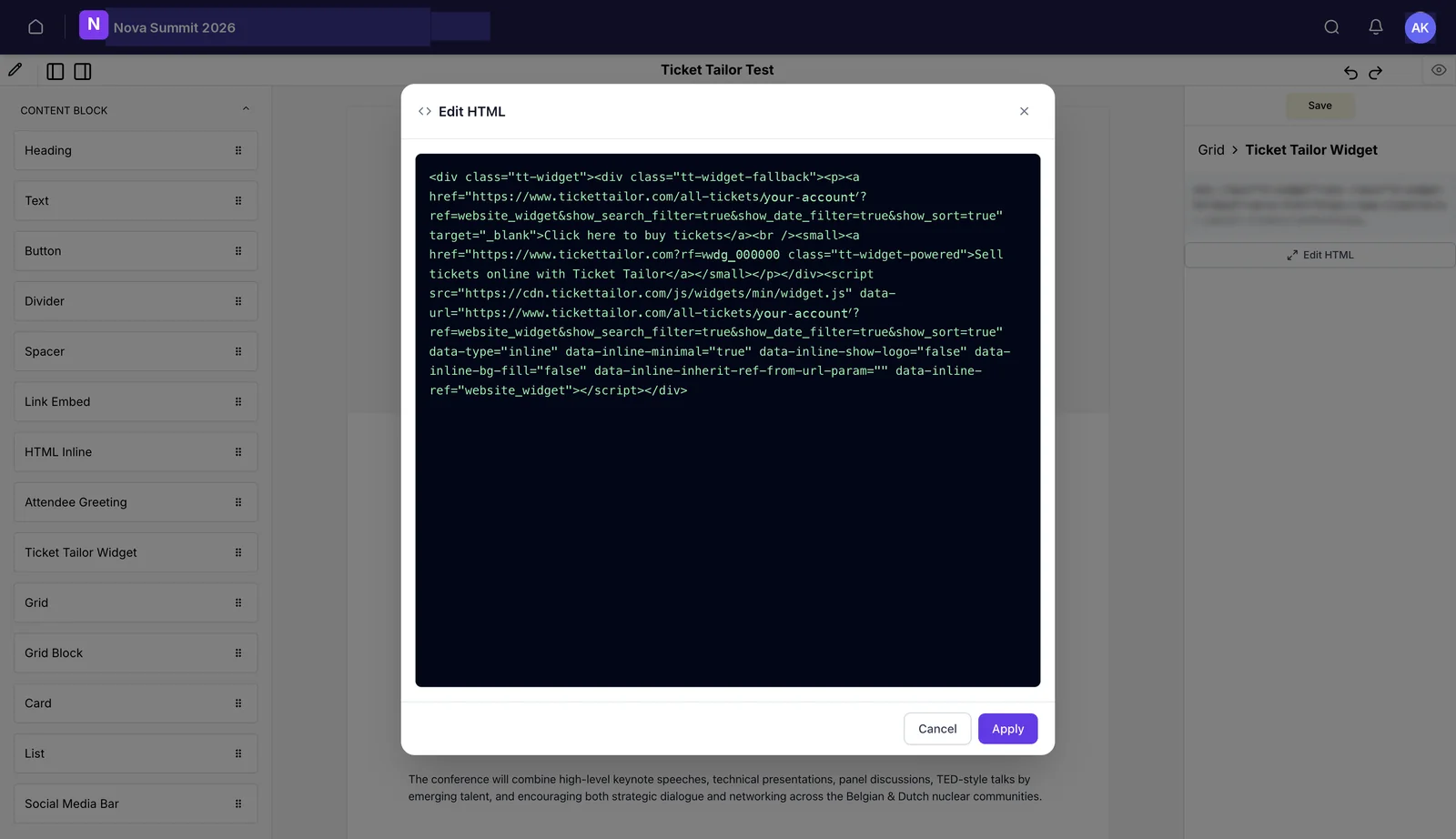
Paste it exactly as Ticket Tailor gives it to you. The snippet already carries your account, your widget reference, and the options you chose in Ticket Tailor. Editing it by hand usually just breaks one of them.
-
Preview and publish
The editor shows a placeholder, so preview the published page to see the actual shop. Check it at phone width too, this is the block people will use on a train.
Having the sync built for you
Manual imports aren’t practical for every event. A large one, a long selling window, or an event where people buy right up to the door all make them risky. In those cases we can build a proper integration, so buyers land in your attendee list without anyone exporting anything.
This isn’t self-service and it isn’t part of the standard plan: it’s set up by us, at an additional cost. It can be built for this event alone, or account-wide so every event you run from now on works the same way, which is the cheaper answer over a couple of years if you run a regular programme.
Tell us about your event, roughly how many tickets you expect, how late sales usually run, and whether this is a one-off or an annual fixture, and we’ll tell you what it involves.
Other ticketing providers
Ticket Tailor has its own component because it’s the one we’re asked for most. Any other provider that gives you an embed snippet can go in through the HTML Inline block in the same Content block group, and behaves the same way: a shop on your page, and buyers you import separately. If you need a built integration with a different provider, ask, the answer depends on what their API allows.
Still need help? Reach our team and we'll get you sorted.
Contact support →