How Eventira Connect works, and how to set it up
This article is the hands-on setup guide. For the bigger picture of what Connect is for, see Eventira Connect: matchmaking.
The problem it’s solving
Someone at a two-day conference has time for maybe a dozen useful conversations. What most event platforms hand them is a roster: an alphabetical, searchable list of everyone present. Finding the right dozen in that list is manual, luck-driven work done in corridors and coffee queues, and most people never do it. They talk to whoever they sat next to.
That costs three different people something:
- Attendees go to the sessions but don’t meet the people, which is usually why they came.
- You can report attendance, session popularity and message delivery, but nothing about whether the event did the thing it exists to do.
- Exhibitors and sponsors buy a stand and hope. Nothing puts a qualified person in front of them.
Before you start
- Attendees with Eventira accounts. Only attendees with a linked user account can join. People imported in bulk without an email address can’t.
- Answer options for your questions. Each question takes its options from one of your event’s tag groups. If you don’t have suitable ones, we can load a ready-made starter set for you (see step 1).
- A registration form that isn’t published yet, if you want to ask the questions at sign-up. You can’t add questions to a form once it’s published or someone has registered with it. See Registration forms.
- Meeting rooms and times, if you want attendees to book meetings. This is optional.
How matching works
Matching is built from four things you control: the questions you ask (called facets), the answers attendees give, the scoring preset you choose, and when you run it. It doesn’t run continuously. Each time you press Run matching now, Eventira works through every attendee who has joined and builds their list.
A few rules decide who ends up on whose list:
- Matching is two-way. What one attendee is looking for is matched against what other people offer, and what they offer against what others are looking for. Two founders who are both looking for investors aren’t a match for each other. A founder looking for investment and an investor offering it are.
- Every suggestion has a reason. Attendees see sentences such as “Offers what you are looking for: Fundraising.” If Eventira can’t explain a suggestion, it doesn’t show it.
- Topics make a match. Context strengthens it. Two people need a shared Looking for, Offering or Objectives answer to be matched. Industry, level and organisation size help rank people but never create a match on their own.
- Skipped questions don’t count against anyone. A question an attendee leaves blank is left out of their ranking rather than scored as zero. Their list is simply built on less.
- Attention is spread out. Eventira limits how many lists any one person appears on, so a few well-known names don’t crowd everyone else out.
- Colleagues aren’t matched. People from the same organisation aren’t suggested to each other, unless you turn this off.
Conference or trade show?
Each list is ranked on six signals, and your scoring preset sets how much each one weighs. Choose Conference for peer events, where people want to meet others like them. Choose Trade show when exhibitors and buyers are the point: it puts the most weight on what people offer, more on industry, and very little on seniority.
Steps
Most of the setup happens before registration opens. After that, your job is to get people to join and to run matching at the right moments.
-
Choose your questions
Go to Event Hub → Matchmaking → Facets. A facet is one question attendees answer on their profile and at registration. There are four, and you can ask any of them:
Facet What attendees are asked How it’s used Looking for “What are you hoping to find here?” Matched against what other people offer Offering “What can you help other people with?” Matched against what other people are looking for Objectives “What would make this event worthwhile for you?” Two people with the same objective score higher Industry “Which areas do you work in?” Adds weight, more so at a trade show For each facet you want to ask, choose a tag group from the Pick a tag group… list. It saves straight away, and the facet then shows “Using [group] — N options”. Leave Counts toward completeness ticked so the attendee’s progress bar includes it.
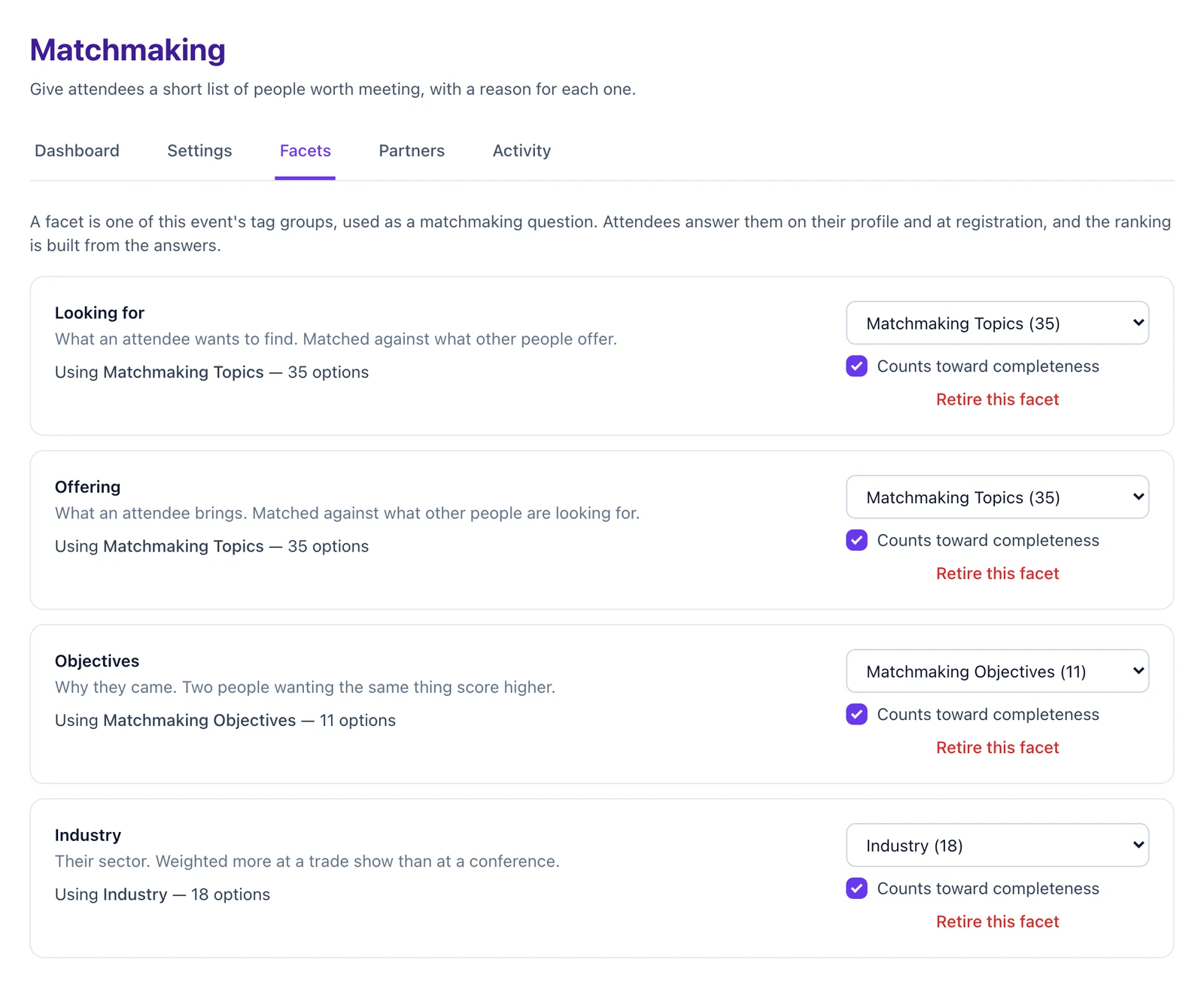 Link Looking for and Offering to the same tag group. Eventira matches one person’s Looking for against another’s Offering option by option, so the two questions have to share one list. If they use different tag groups, no answers can ever overlap and nobody gets matched on them.★Always ask Looking for and Offering. Together they carry over half of every ranking. Add Objectives next. Industry is useful, but it can’t create a match on its own.
Starter sets. If your event doesn’t have suitable tag groups, ask us to load the Conference or Trade show starter set. It creates three tag groups (Matchmaking Topics, Matchmaking Objectives and Industry) and links all four facets for you, with Looking for and Offering already sharing Matchmaking Topics.
- Conference — 35 topics such as API design, Fundraising, and Hiring and recruiting; 11 objectives such as Find customers and Hire for my team; 18 industries such as SaaS and Fintech.
- Trade show — 32 topics such as Contract manufacturing and Freight and customs; 10 objectives such as Find new buyers and Appoint distributors; 18 industries such as Automotive and Food and beverage.
Writing your own options. Aim for 20 to 40 specific topics your attendees would recognise. Leave out catch-alls such as “Networking”: when everyone picks the same option, it can’t tell anyone apart. Because Looking for and Offering share the list, word each option so it reads both ways. “Fundraising” works as something you’re looking for and something you offer. “Raising money” doesn’t.
-
Set your limits
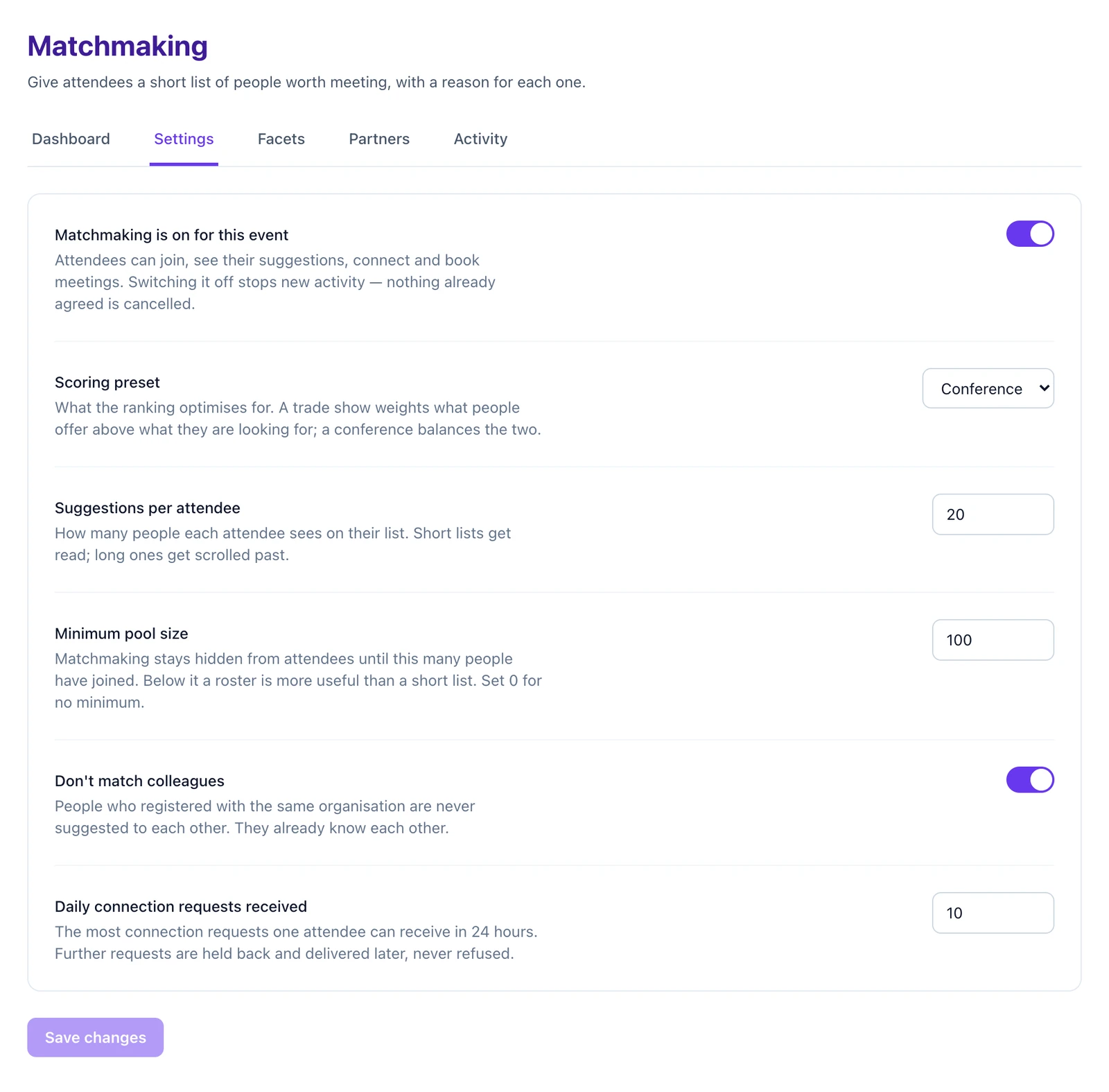
Go to the Settings tab. It has six controls. The defaults suit most events; the two worth checking are the scoring preset and the minimum pool size.
Setting Default What it does Our advice Matchmaking is on for this event On Lets attendees join, see suggestions, connect and book meetings. Switching it off stops new activity; nothing already agreed is cancelled. Leave it on. It can only be switched on once at least one facet exists. Scoring preset Conference Sets what the ranking weighs most. Trade show if exhibitors and buyers are the focus. Suggestions per attendee 20 (1–100) How many people each attendee sees on their list. Keep it between 10 and 20. Short lists get read. Minimum pool size 100 Connect stays hidden from attendees until this many people have joined. Set 0 for no minimum. At smaller events, lower it to a number you’re sure to reach, such as 40 at a 150-person event. Don’t match colleagues On People who registered with the same organisation are never suggested to each other. Leave it on, unless your event exists to connect teams inside one organisation. Daily connection requests received 10 (1–100) The most requests one attendee can receive in 24 hours. Extra requests are held back and delivered later, never refused. For a one-day event, raise it so requests aren’t held until after the event. Click Save changes. Every change is recorded, with who made it, on the Activity tab.
-
Add the questions to your registration form
Answers collected at registration are the biggest single factor in how good the lists are. Attendees who arrive with empty profiles have nothing to match on. If no form asks the questions yet, the Settings tab says “Nothing is collecting matchmaking answers.” Next to the registration form you want to use, click Add the questions.
Eventira adds these optional questions to the end of the form: one for each facet you’ve declared, plus level and organisation size.
- “What are you looking for at this event?”
- “What can you offer other attendees?”
- “What do you want to get out of this event?”
- “Which industry do you work in?”
- “What best describes your level?”
- “How big is your organisation?”
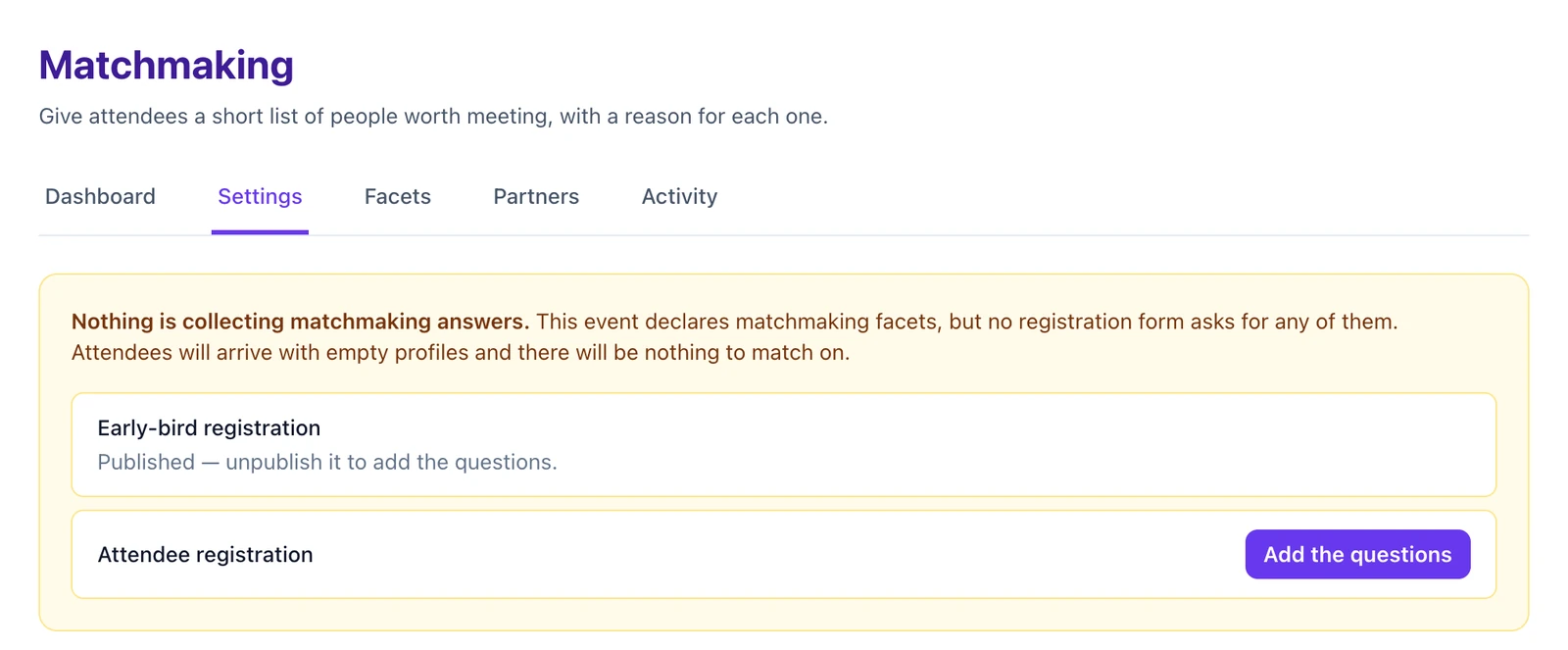 Do this last, once the rest of the form is final. A published form shows “Published — unpublish it to add the questions.” A form that people have already registered with can’t change at all, so duplicate it instead.
Answering at registration doesn’t join an attendee to Connect. Their answers are saved to their profile, but they still need to open Connect and tap Join matchmaking. Say this in your confirmation email.
-
Invite attendees to join
Nobody appears on anyone’s list until they’ve joined. Explain what Connect is and how to join in your confirmation email, and again in the week before the event. You can use this text, and link to Answer your Connect profile and meet the right people for tips on answering.
Invitation textMeet the right people at [event name]
This year we’re using Eventira Connect to suggest people worth meeting, each with a reason why. To take part, open the event website, tap Connect, then tap Join matchmaking.
Tell us what you’re looking for and what you can offer. The more specific you are, the better your suggestions. Nothing about you is used until you join, and you can leave at any time.
See Send emails & push notifications for sending it.
-
Run matching
Once the Opted in figure on the Dashboard is past your minimum pool size, click Run matching now. The run happens in the background and usually takes a few minutes. The button changes to Run queued and the Dashboard says “The run is under way.” Switch to another tab and back to see the new figures.
Only one run can happen at a time. When it finishes, attendees with new suggestions get a “New matches” notification.
-
Review, fix and run again
After each run, check Last run and Going unmatched (see Reading the Dashboard below). Then run matching again regularly. Matching never runs on its own, and people who join later only appear on other attendees’ lists after the next run.
When How often to run matching Joins pass your minimum pool size First run, ideally one to two weeks before the event Registration still open Every two or three days Event week Daily Event days Each morning, before doors open Attendees’ own edits update on their own. When attendees change their profile, their own list refreshes about 30 seconds after they save. This starts working after your first run.
Meetings
Once two attendees are connected, either one can propose a meeting. Eventira only offers times both people can make: the slot is free, it hasn’t passed, and it doesn’t clash with sessions either person has saved to their schedule. The room is held from the moment a meeting is proposed, so every time on offer is genuinely bookable. Each pair can have one meeting at a time.
Setting up meeting times
Meeting times are your meeting rooms and the windows when each one is free for meetings, such as Meeting Room 2 from 10:00 to 10:20. For now we load these for you: send us your rooms, dates and time slots. Until meeting times exist, attendees who try to book see “There are no times available to book at the moment.”
People who also want to meet you
After each run, Eventira looks for pairs of people who appear on each other’s lists. They show at the top of each attendee’s For you tab under People who also want to meet you, marked “You’re both interested”. Each person gets about five at most, so these strong pairs are spread across the event. Attendees are notified with “People want to meet you”.
Reminders
Attendees get a reminder 15 minutes before a confirmed meeting while they have Eventira open. Encourage them to add important meetings to their own calendar as well.
Reading the Dashboard
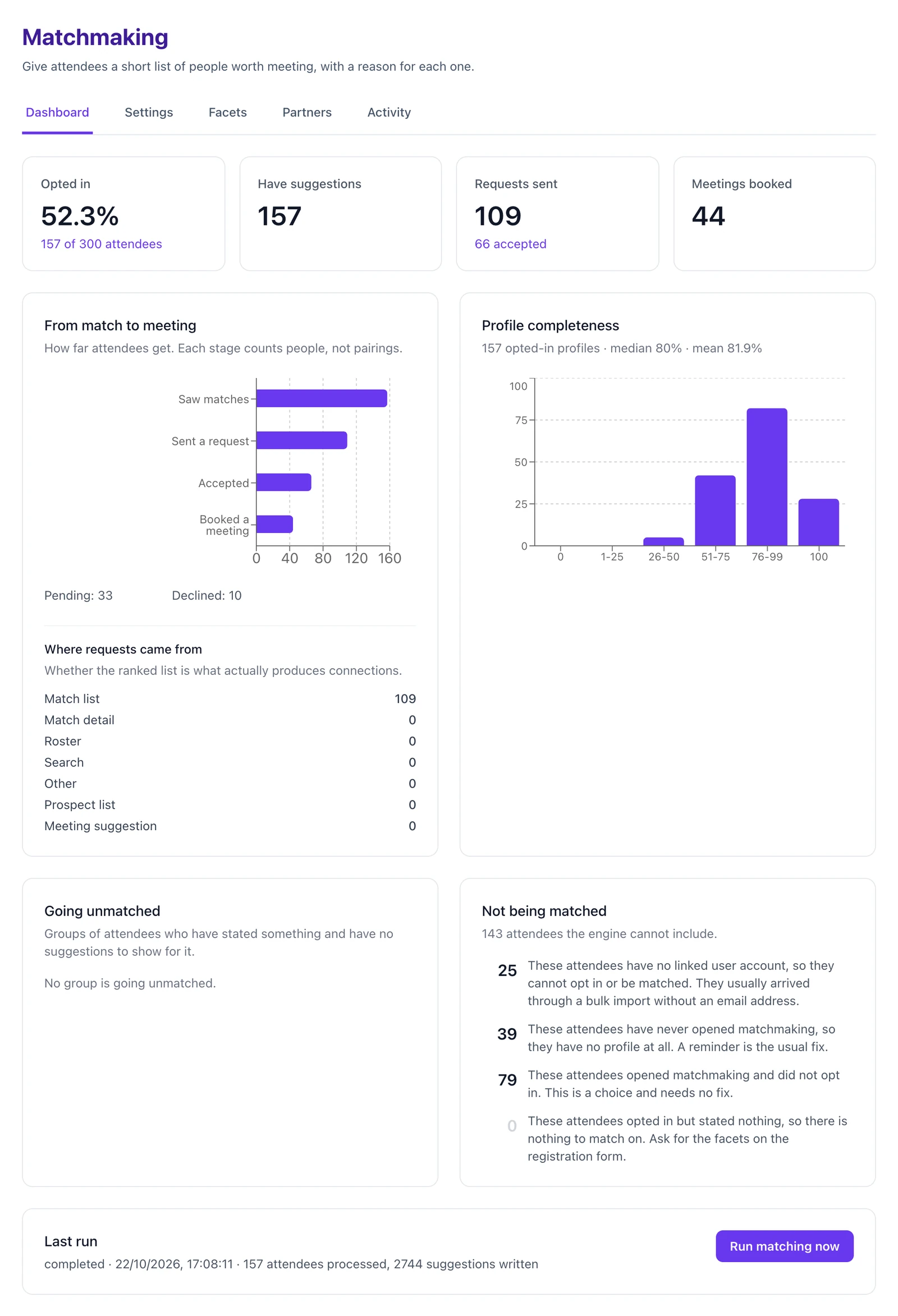
The Dashboard is where you see whether Connect is working at your event. All figures are totals; no individual attendee’s list is shown.
| Card | What it tells you | What to do |
|---|---|---|
| Opted in | The share of attendees who have joined, such as 62% (310 of 500 attendees). | If it’s low, send another invitation (step 4). |
| Have suggestions, Requests sent, Meetings booked | Whether lists are turning into contact. | Lots of suggestions but few requests usually means people haven’t looked yet. A reminder helps. |
| From match to meeting | How far people get: Saw matches, Sent a request, Accepted, Booked a meeting. Where requests came from shows whether the list is producing the connections. | A big drop between Accepted and Booked a meeting usually means there aren’t enough meeting times. |
| Profile completeness | How complete opted-in profiles are, with the median and mean. | If most are under 50%, check the registration form asks the questions, and ask attendees to finish their profile. |
| Going unmatched | Groups of attendees who chose an option and have no suggestions for it, with ideas under What would help. | Usually nobody offers what that group is looking for. Review the options on the Facets tab. |
| Not being matched | Attendees Eventira can’t include, and why. | See the table below. |
| Last run | Status, time, attendees processed and suggestions written. | “That run produced no suggestions at all” means answers aren’t overlapping. Check that Looking for and Offering share a tag group. |
Why someone isn’t being matched
| Reason shown | What to do |
|---|---|
| No linked user account | Usually a bulk import without an email address. Add their email so they get an account. |
| Never opened matchmaking | Send a reminder. |
| Opened it and didn’t opt in | Nothing. This is their choice. |
| Opted in but stated nothing | Ask the questions on your registration form, and remind attendees to finish their profile. |
Exhibitors and sponsors
The Partners tab turns one of your attendee groups, such as your exhibitor staff, into a partner group. Its members get a prospect list: their ranked list, narrowed to attendees who’ve agreed to be contacted by partners. Their connection requests count against a quota you set.
- Under Declare a partner group, choose the group from Pick an attendee group….
- Set a Total quota and a Daily cap for outreach. 0 means unlimited, and quotas start unlimited, so set them once the sponsorship package is agreed.
- After the event, click Export consented leads to download a spreadsheet of attendees who agreed to partner contact, with name, organisation, role and email. Nobody else is included.
What you can and can’t see
- You can see totals and rates on the Dashboard, groups of 5 or more, every configuration change on the Activity tab, and attendees who consented to partner contact in the lead export.
- You can’t see any attendee’s own suggestions, any scores or rankings (none are shown anywhere), or who saved, dismissed or declined whom.
- You can’t book a meeting on an attendee’s behalf. The two attendees always agree it between themselves.
Attendees are told what others can see before they join, and leaving matchmaking deletes the answers they gave.
One thing attendees ask about: refusals all look the same. Blocked, unavailable and gone-private return an identical message. If you could tell them apart, blocking someone would quietly notify them that they’d been blocked.
Troubleshooting
| What you see | Why | What to do |
|---|---|---|
| “Matchmaking is switched on, but it is not running” | No facets are declared yet. | Link at least one facet to a tag group on the Facets tab. |
| Attendees can’t find Connect on the event website | No facets are declared yet. | Same as above. The Connect tab appears once a facet exists. |
| Attendees see “Not quite yet” | Fewer people have joined than your minimum pool size. | Invite more people, or lower Minimum pool size. |
| Attendees see “No suggestions yet” | Matching hasn’t run since they joined, or they only answered industry, level or size. | Click Run matching now. Ask them to add Looking for, Offering or Objectives answers. |
| “That run produced no suggestions at all” | Answers don’t overlap. | Check Looking for and Offering share a tag group, and read Going unmatched. |
| “A match run is already in progress for this event” | Only one run can happen at a time. | Wait a few minutes, then check the Dashboard. |
| “Nothing is collecting matchmaking answers” | No registration form asks the questions. | Click Add the questions next to your form (step 3). |
| Attendees see “There are no times available to book at the moment” | No meeting times exist, or every time that suits both people is taken. | Send us your rooms and time slots, or add more. |
| The Facets tab says the event has no tag groups | Your event has no tag groups to draw options from. | Ask us to load a starter set. |
Still need help? Reach our team and we'll get you sorted.
Contact support →