Building your partner page
What you’ve been asked to do
Your partner page is where attendees land when they tap your name in the event app or on the event website. It carries your logo, what you do, where to find you, and whatever else you want to put in front of several hundred people who chose to look you up.
The organiser could fill this in for you from whatever you emailed them. Letting you do it yourself is better for both sides: you control how you’re described, and you can fix a typo at 9pm without asking anyone.
Before you start, gather three things
- Your logo, as PNG, JPG or SVG, up to 2MB. Send SVG if your design team has one, it stays sharp at every size. Otherwise a PNG with a transparent background.
- A short description. One or two sentences, not a paragraph. It appears under your name on a card alongside every other partner, so the ones that land are specific: “Digital health records and patient engagement” beats “a leading provider of innovative solutions”.
- Your links. Your website, and whichever social profiles you actually maintain. A dead LinkedIn page is worse than no link.
Signing in
-
Open the invite link
Use the link the organiser sent you, and the email address they sent it to. That address is what identifies you, so if the invite went to a shared marketing inbox and you’d rather use your own, ask the organiser to reinvite you before you start.
-
Enter the six-digit code
Eventira emails you a code to confirm it’s you. There’s no password to create and no app to install. If it doesn’t arrive within a minute, check spam, corporate mail filters catch these more often than anything else.
-
Choose how to build it
Open Create from scratch and pick the approach that suits you. Your access covers this event only, and only your own organisation’s page, you can’t see or change anything else about the event.
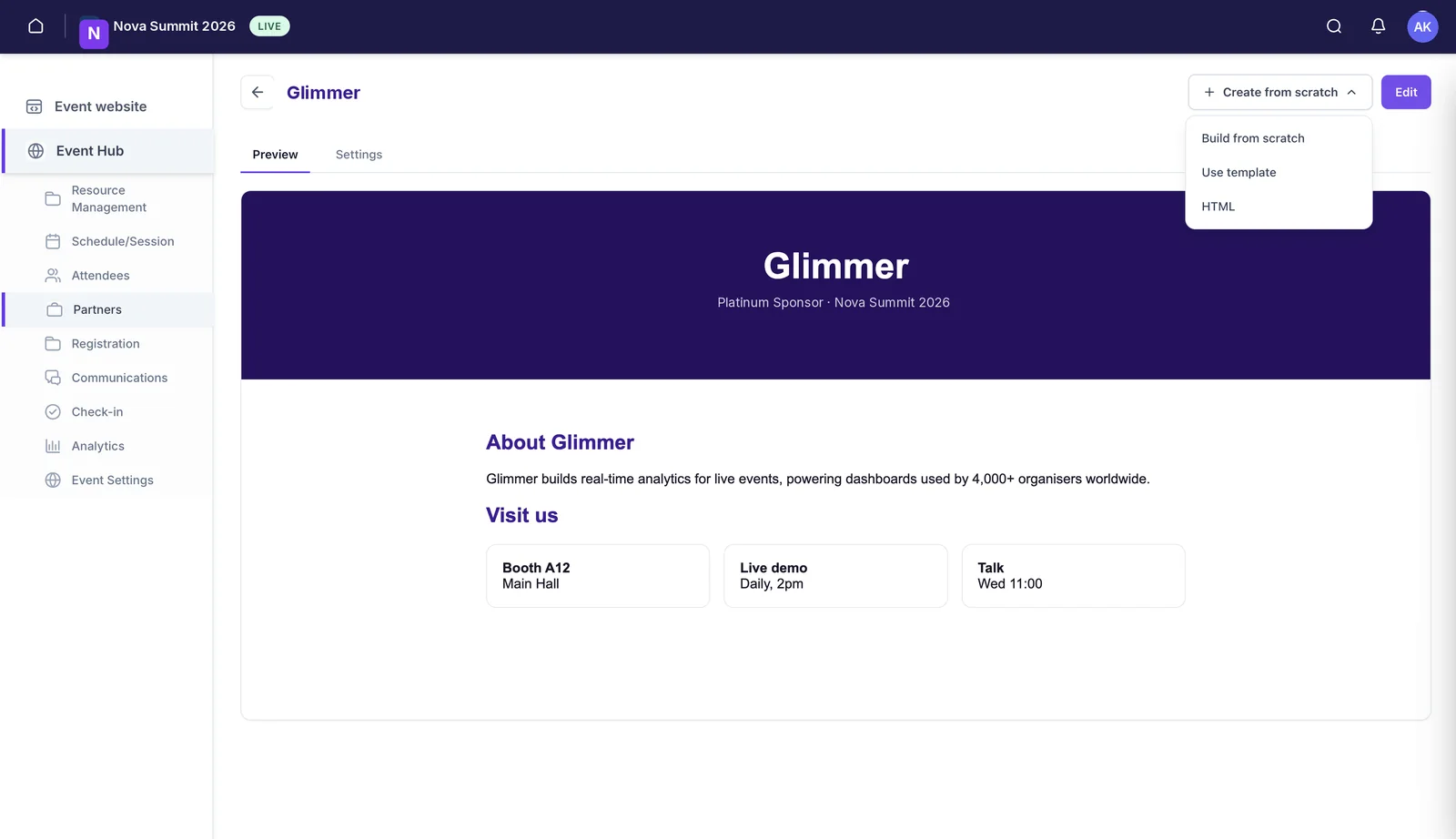
Three ways to build it
Pick one. They produce the same kind of page, they just suit different people.
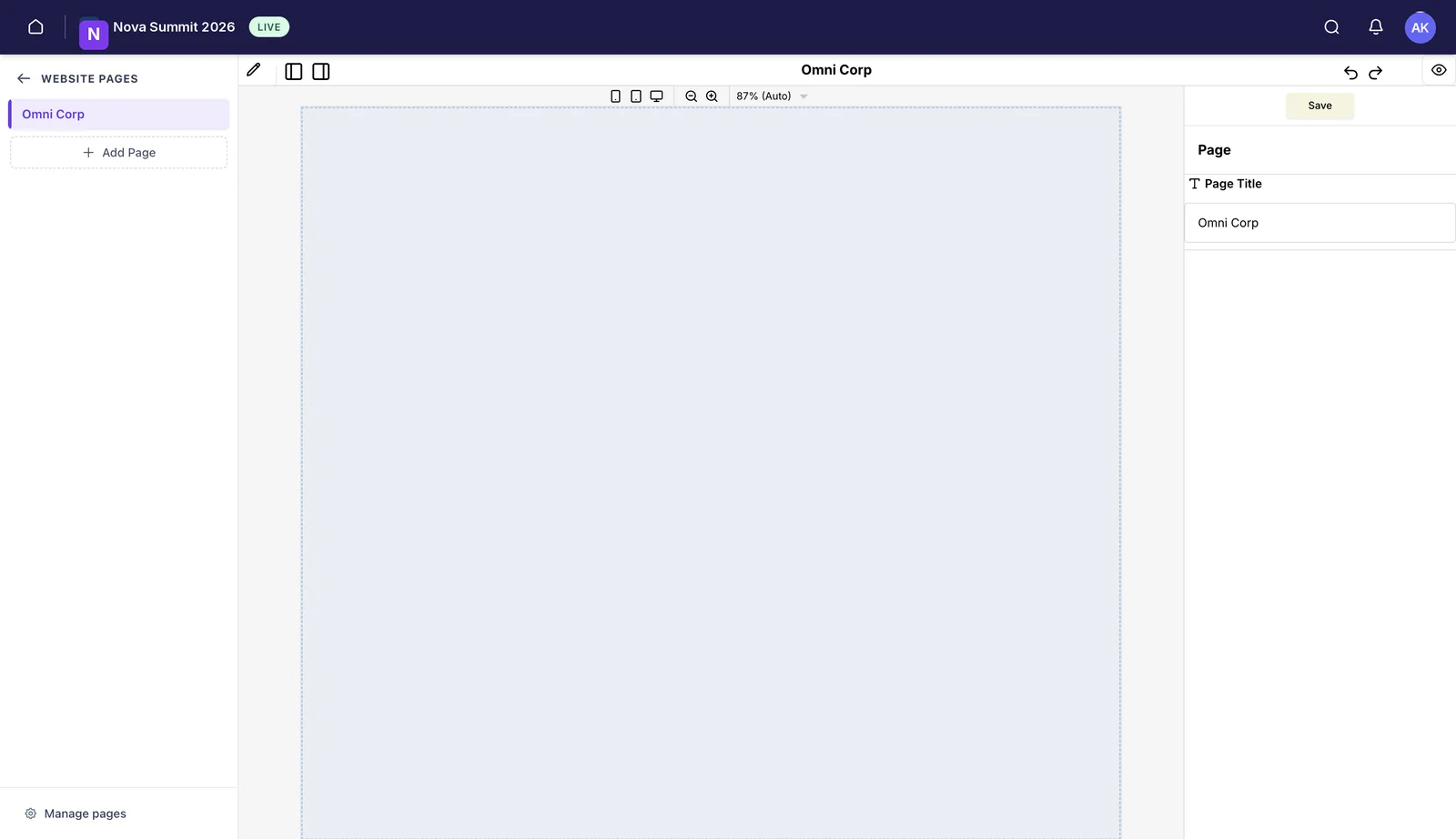
Build from scratch
The visual editor. Drag blocks onto the canvas, type into them, and preview at phone, tablet and desktop width from the toolbar. No code, and the result is responsive without you thinking about it. This is the right choice for most people, and certainly if nobody on your side writes HTML.
Use template
Start from a ready-made layout and replace the content. Quickest route if you want something tidy and don’t have strong opinions about the design.
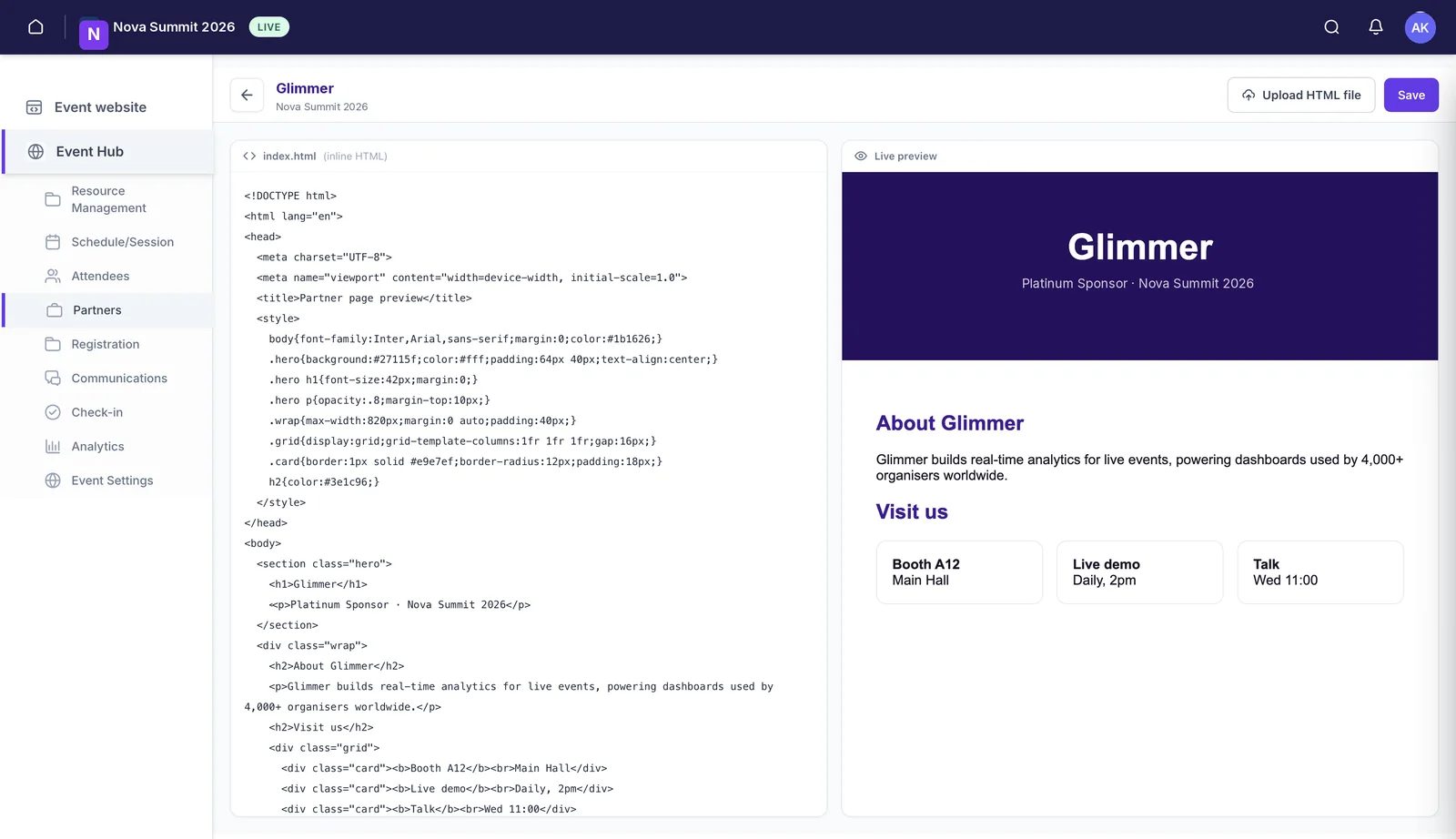
HTML
Paste or upload your own HTML and see it render live beside the code. If your marketing team already has a landing page for this event, or you’d rather have an AI assistant draft the page and drop the result in, this is the option to use.
Whichever you choose, Preview shows the finished page and Settings holds the details that appear alongside it. Save as you go.
What attendees actually see
Two things. In the partner directory you appear as a card: logo, name, your tier, your description, your links, and a button through to your full page. That card is the decision point, most people will judge whether to tap through from those two lines.
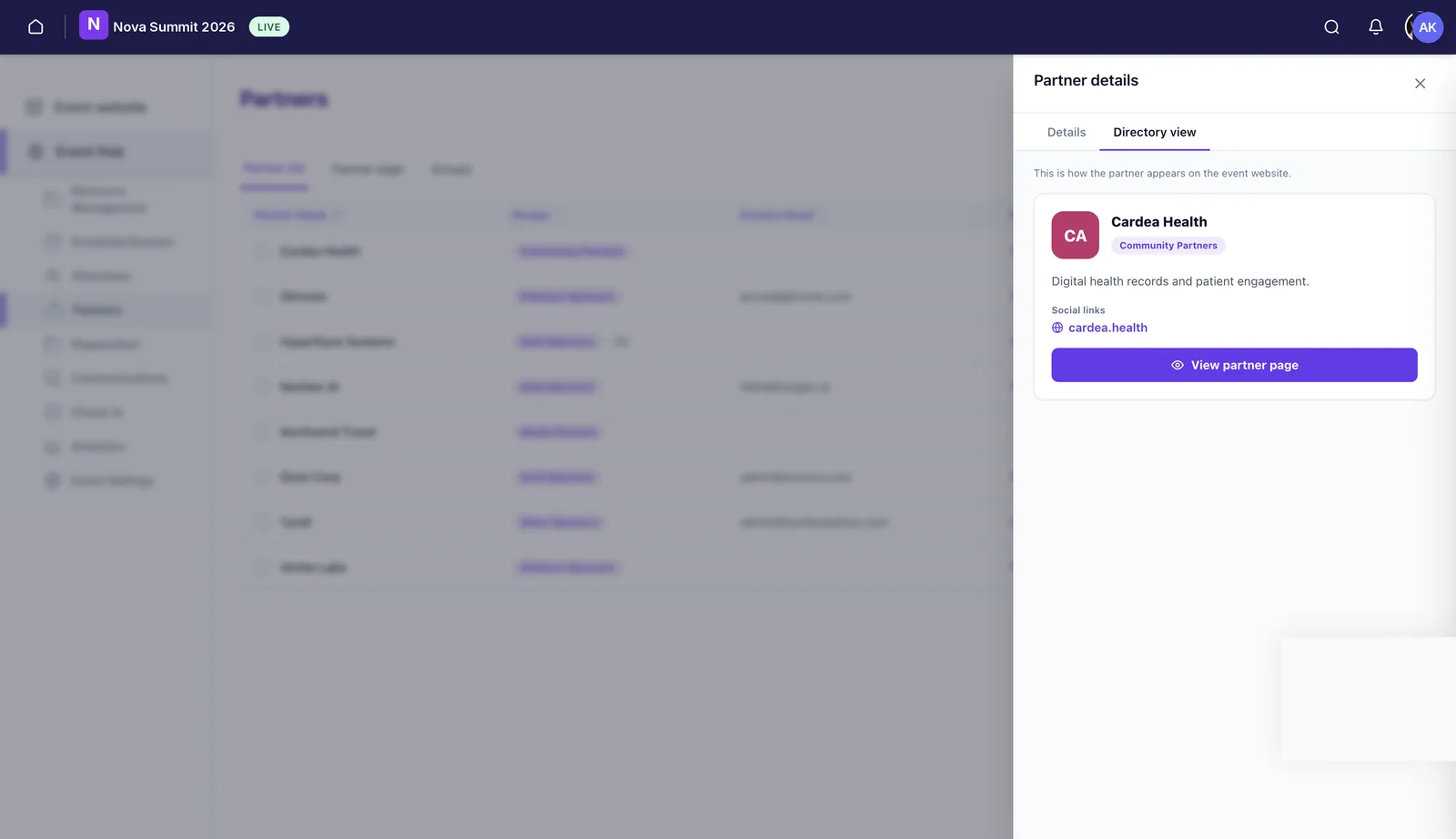
Tapping through opens your partner page itself, which is where the detail belongs.
If something isn’t right
- Wrong tier shown? That’s set by the organiser, not by you. Ask them.
- Invite link expired or gone missing? Ask the organiser to resend it; they can see whether your invite is still pending.
- Need to change the email your access is tied to? Also the organiser. It takes them a few seconds.
- Everything looks right but the page isn’t live? The organiser controls whether partner pages are switched on and published. Check with them before assuming something is broken.
Still need help? Reach our team and we'll get you sorted.
Contact support →