Answer your Connect profile and meet the right people
Getting started
-
Answer the questions when you register
If the registration form asks what you’re looking for and what you can offer, answer it. Your answers carry over to Connect, so you don’t have to type them twice.
-
Join matchmaking
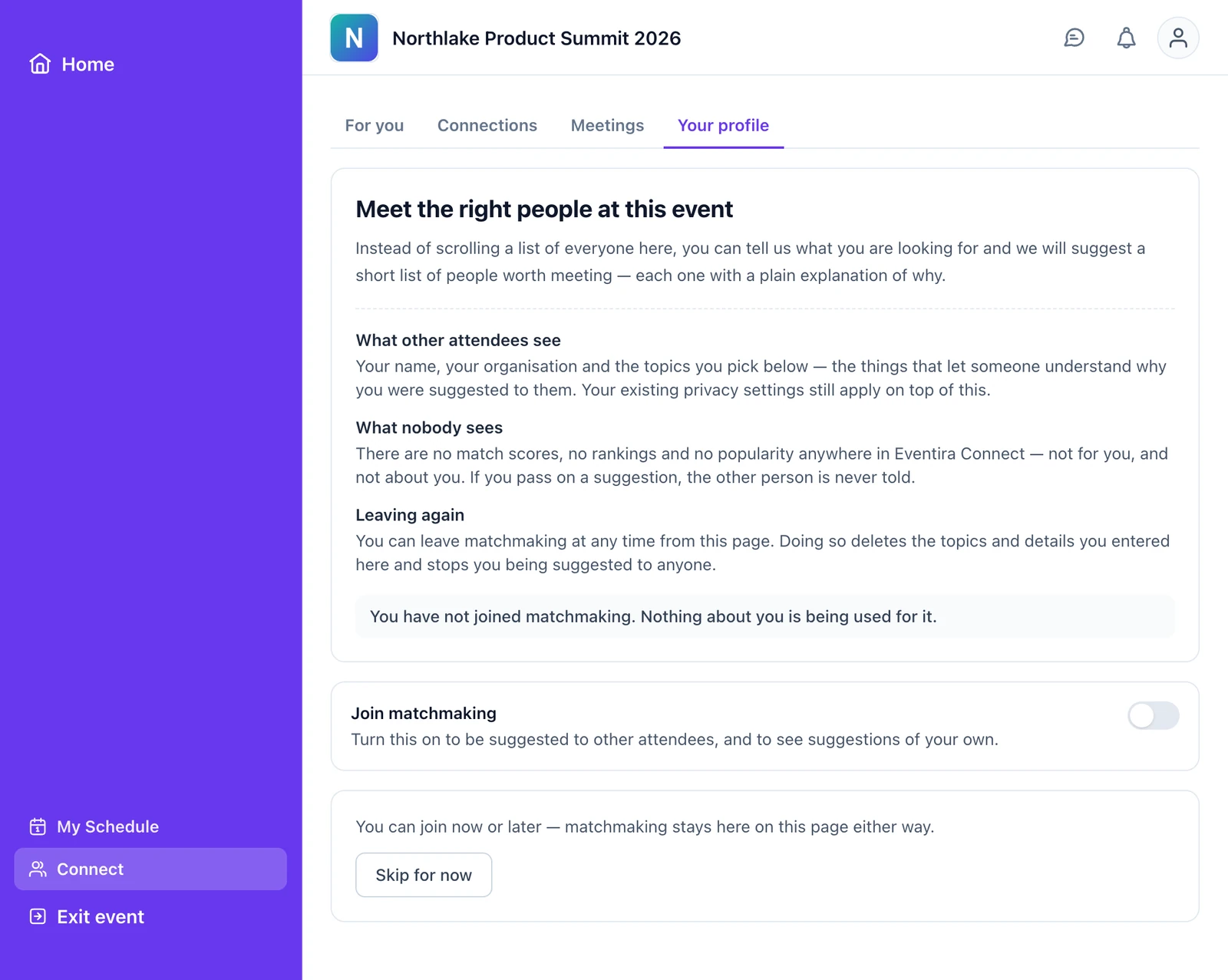
On the event website, tap Connect, then Join matchmaking. This is the step most people miss: registering saves your answers, but nobody is suggested to you, and you aren’t suggested to anyone, until you join.
-
Complete your profile
On the Your profile tab, answer the questions and press Save. Aim for 100% on the progress bar. The rest of this article explains how to answer each question well.
-
Check People to meet
Your list appears on the For you tab once the organiser has run matching. Each person comes with the reasons they’re there.
-
Connect
Press Connect on anyone you’d like to meet, and add a line about why.
-
Chat and meet
When they accept, open the chat or propose a meeting time.
How your answers are matched
Connect compares your answers with those of everyone else who has joined, then picks the people where the overlap is strongest. Each answer is compared in a particular way, and some count for much more than others.
Four things follow from this:
- Seeking, Offering and Objectives decide who’s on your list. Industry, level and organisation size help put the best people at the top, but they can’t create a match on their own. If you answer only those three, you’ll get no suggestions.
- Your Offering answers are how other people find you. Someone looking for what you know can only be pointed to you if you’ve said you offer it.
- A few shared topics are enough. Up to three shared topics in Seeking or Offering count fully, and two shared Objectives. There’s no limit on how many you pick and no penalty for picking more, but every topic you pick can bring you a suggestion.
- Questions you skip don’t count against you. They’re left out of your ranking rather than scored as zero. You just give Connect less to work with.
Where to spend your time
Your profile bar fills up by how much each answer matters. Seeking and Offering together make up half of it, and they carry 55 to 60 of every 100 points when people are ranked for you.
Question by question
You’ll find these on the Your profile tab in Connect, under What you are looking for. Tap an option to select it, and tap it again to remove it. The registration form asks the same questions in slightly different words, shown under each heading.
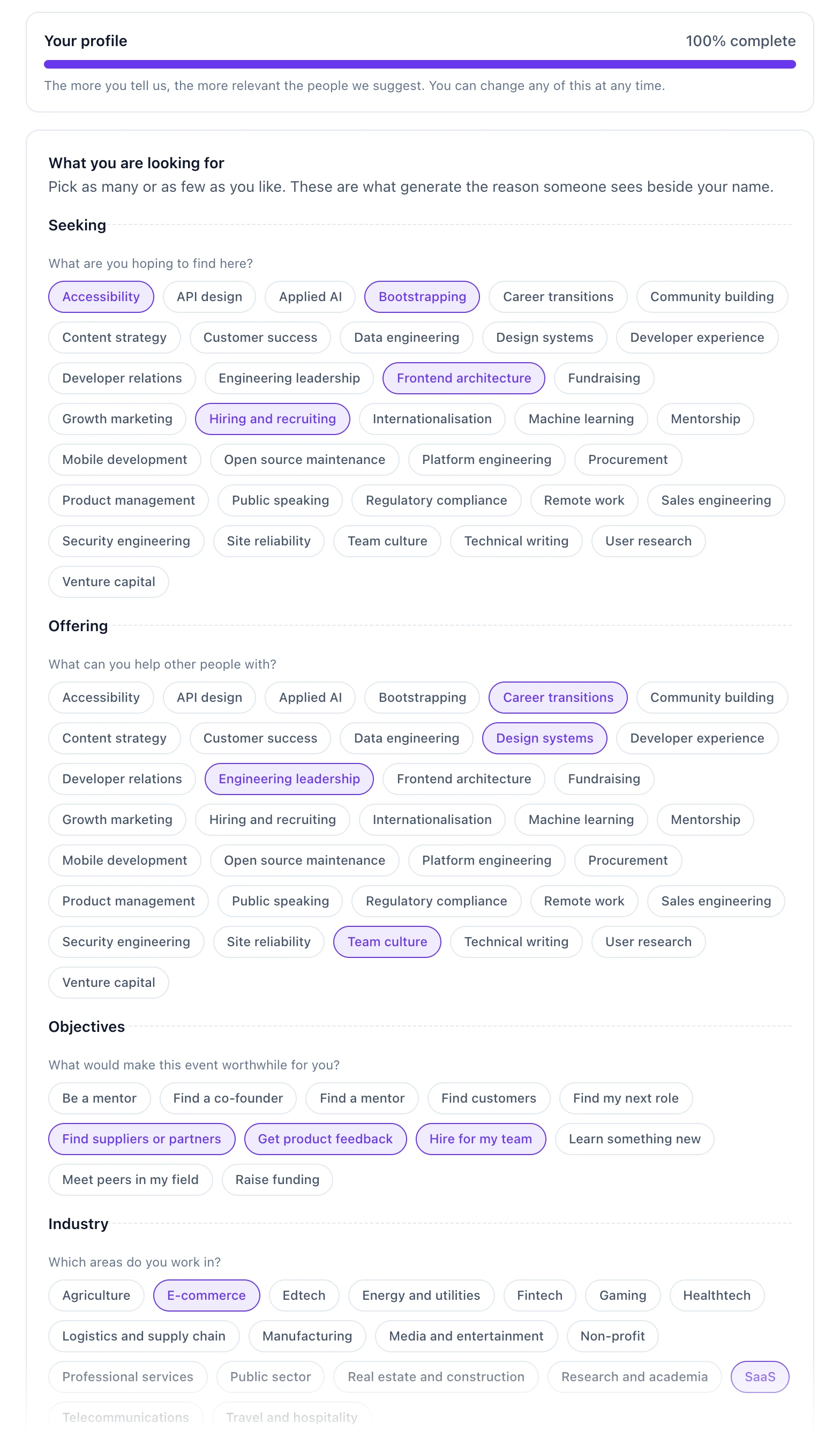
Seeking
On your profile: “What are you hoping to find here?” · At registration: “What are you looking for at this event?” · 25% of your profile
Matched against what other people offer. At a conference it’s the biggest single signal.
- Pick the topics you actively want help, advice or contacts for at this event. Three to six is a good range.
- Include your most specific topics. Connect looks for candidates through the less common topics first, so a specific one such as “Regulatory compliance” finds the right people faster than one everybody picks.
- Leave out topics you’d only be mildly curious about. Each one you pick can bring you a suggestion.
Example: FundraisingVenture capitalHiring and recruiting
Offering
On your profile: “What can you help other people with?” · At registration: “What can you offer other attendees?” · 25% of your profile
Matched against what other people are looking for. This is how people find you. At a trade show it’s the biggest single signal.
- Pick what you could happily talk about for 20 minutes: your skills, experience, products or services.
- If you’re an exhibitor or sponsor, list what you sell or provide. People looking for it will be pointed to you.
- Don’t skip it. Leaving it blank doesn’t hurt your own list, but nobody looking for what you know can find you.
Example: API designPlatform engineeringDeveloper experience
Objectives
On your profile: “What would make this event worthwhile for you?” · At registration: “What do you want to get out of this event?” · 20% of your profile
People who chose the same objective rank higher. Two shared objectives count fully.
- Pick the one to three main reasons you’re attending.
- Objectives connect people who want the same thing, such as two founders who both want to raise funding. For two-sided needs, like hiring and job-hunting, use Seeking and Offering too, because those match opposites.
Example: Raise fundingHire for my team
Industry
On your profile: “Which areas do you work in?” · At registration: “Which industry do you work in?” · 10% of your profile
A shared industry moves people up your list, and one shared industry counts fully. On its own it can’t create a match. Pick the sector you work in, and any you sell into if that matters to you. One or two is plenty.
Example: Fintech
Your level
On your profile: “Used to suggest people at a comparable stage.” · At registration: “What best describes your level?” · 10% of your profile
The options are Student, Entry level, Mid level, Senior, Lead / Principal, Director, VP and C-level / Founder. The closer two people’s levels, the higher they rank, and an exact match shows as “Similar seniority: Director.” It matters much less at trade shows. Pick the one that fits your current role, or choose Prefer not to say and it’s left out of your ranking.
Organisation size
On your profile: “Used to suggest people from comparable organisations.” · At registration: “How big is your organisation?” · 10% of your profile
The options are Just me, 2–10, 11–50, 51–250, 251–1000 and 1000+. It works like level: the closer the sizes, the higher the rank. It’s the lightest signal. Pick your organisation’s size, or Prefer not to say.
Anything else
On your profile: “Optional, and shown as written. This does not affect who you are matched with.”
Not used for matching. It’s shown word for word on your details page, under In their words, to people who have you on their list. Add a sentence about when you’re free or what you most want to talk about. It’s often what makes someone press Connect.
Example: “Here Tuesday afternoon only. Keen to meet anyone who has scaled a payments API.”
When you’re done, press Save. If you try to leave with unsaved changes, you’ll be asked first.
A thin profile and a strong one
Here’s the same attendee at a conference, answering two ways, and what each version gets back.
Profile checklist
- I’ve joined matchmaking: Your profile says “You are in matchmaking”.
- Seeking has three or more topics I actively want.
- Offering has three or more topics I could talk about for 20 minutes.
- I’ve picked one to three Objectives.
- Industry, Your level and Organisation size are answered, or set to Prefer not to say on purpose.
- My profile bar is at or close to 100%.
- My name, job title, organisation and photo are up to date in my event profile, because they appear on every card.
- I’ve pressed Save.
Make the most of your matches
Work through People to meet
The For you tab lists the people suggested for you, each with the reasons they’re there. Tap a card to see more, including their level, organisation size and anything they wrote under In their words.
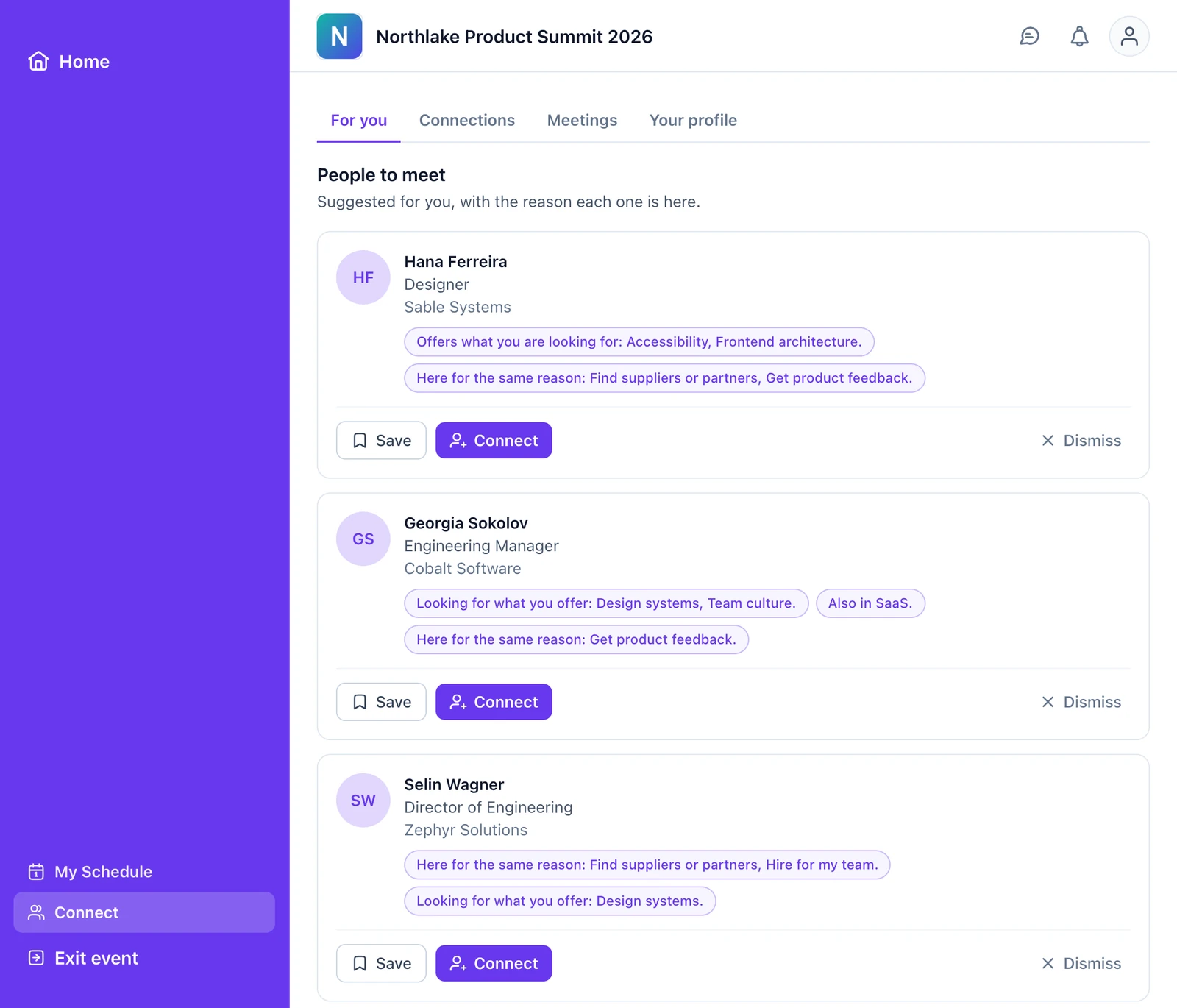
- Save anyone you want to come back to.
- Dismiss anyone who isn’t relevant. This is permanent: that person won’t be suggested to you again, and they aren’t told.
- Connect with the people you’d like to meet.
Send a request that gets accepted
When you press Connect, you can add a note of up to 300 characters. It’s optional, but a line about why you’d like to meet makes a big difference. Use the reasons on their card.
- Strong: “You’re hiring platform engineers and I’ve built a team of twelve from scratch. Happy to share what worked. Free Tuesday afternoon?”
- Weak: “Hi, I’d like to connect.”
Each person can only receive a limited number of requests a day, so popular people may get yours a little later. Send your most important requests early.
Start with people who also want to meet you
At the top of For you, People who also want to meet you shows people who have you on their list too, marked “You’re both interested”. These are your strongest introductions. Press Let’s meet to send them a connection request, or Not this one to pass.
Book a meeting
Once someone accepts, go to Connections → Connected. Press Open chat to message them, or Propose a meeting to pick a time.
- You only see times you can both make, in rooms that are free.
- The time is held for both of you as soon as you propose it. They can accept or decline.
- Once confirmed, the meeting shows in your schedule. If plans change, withdraw or cancel it to give the time back.
- You’ll get a reminder 15 minutes before while Eventira is open. For important meetings, add them to your own calendar too.
Keep your profile current
Your list refreshes about 30 seconds after you save changes to your profile. If you realise mid-event that you want to meet different people, change your Seeking answers and check For you again.
Privacy and control
Nothing about you is used for matching until you join.
- Other attendees can see your name, job title, organisation and photo, your level and organisation size, the topics you share with them (in the reasons), and what you wrote under Anything else.
- Nobody sees scores, rankings or popularity, because none exist anywhere in Connect, or whether you saved, dismissed or declined them. The organiser’s Dashboard shows only totals.
- Colleagues. People from your own organisation usually aren’t suggested to you.
- Blocking. From a request or connection, press Block. They can no longer see or reach you in Connect, you won’t see them, and they aren’t told.
- Leaving. Turn off the switch on Your profile and press Leave matchmaking. This deletes the answers you entered and stops you being suggested to anyone. You can rejoin later, but you’ll need to enter your answers again.
See How attendees sign in if you can’t get into the event website.
Common questions
I answered the questions when I registered. Why does Connect say “Join Connect to see your matches”?
Registering saves your answers but doesn’t join you. Tap Join matchmaking, and your answers will already be there.
Connect says “Not quite yet”.
Not enough people at your event have joined yet. Check back closer to the event.
Connect says “No suggestions yet”.
Either the organiser hasn’t run matching since you joined, or your profile has no Seeking, Offering or Objectives answers yet. Industry, level and size alone can’t produce a match.
I can’t find Connect on the event website.
Your event isn’t using Connect. Ask the organiser.
I updated my profile. When will my list change?
About 30 seconds after you press Save, as long as matching has already run for your event.
Someone disappeared from my list.
They changed their profile, left matchmaking or are no longer available. If they’re still a good fit, they’ll come back after the organiser’s next matching run.
I got “This connection request could not be sent.”
That person can’t receive a request from you right now. For their privacy, Connect doesn’t say why.
Can I undo a dismiss?
No. Dismissing is permanent for that person. If you’re unsure, use Save instead.
Can people see my match score?
No. There are no scores, rankings or popularity counts anywhere in Connect, for you or about you.
Still need help? Reach our team and we'll get you sorted.
Contact support →